

Register, download, install, activate, and update all of your UVI products in a single convenient location.
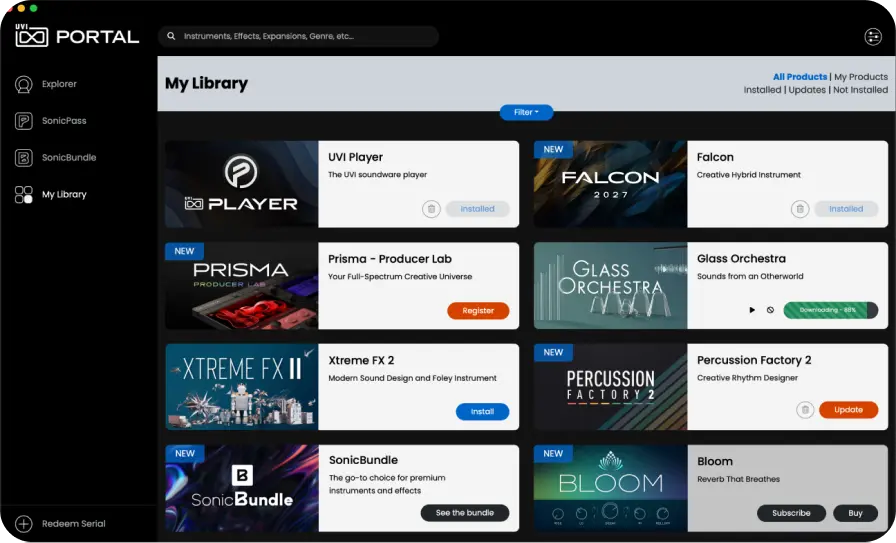
What Is UVI Portal?
UVI Portal lets you register, download, install, activate, and update all of your UVI products in a single convenient location.
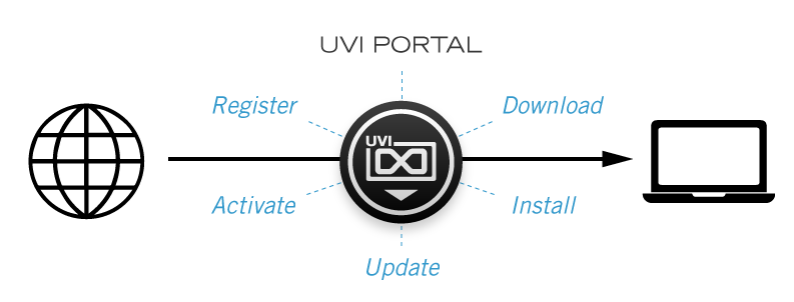
- Register — easily register your new product serial numbers. UVI Portal links directly to your iLok account and deposits your new licenses automatically.
- Download and install — one-click automated download and installation of all your UVI instruments, Soundware, and effects.
- Activate — launch iLok License Manager directly from UVI Portal to activate your computer or iLok dongle.
- Update — stay current with the latest updates for all of your instruments, effects, and Soundware with a single click.
- Explore — discover new instruments, effects, and Soundware for your projects.
Download and Install UVI Portal
Download UVI Portal for your system:
macOS
- Double-click the downloaded DMG file.
- Double-click the pkg file to start the installation.
Windows
- Double-click the downloaded exe file to start the installer.
- Follow the steps of the installer.
Connect to UVI Portal
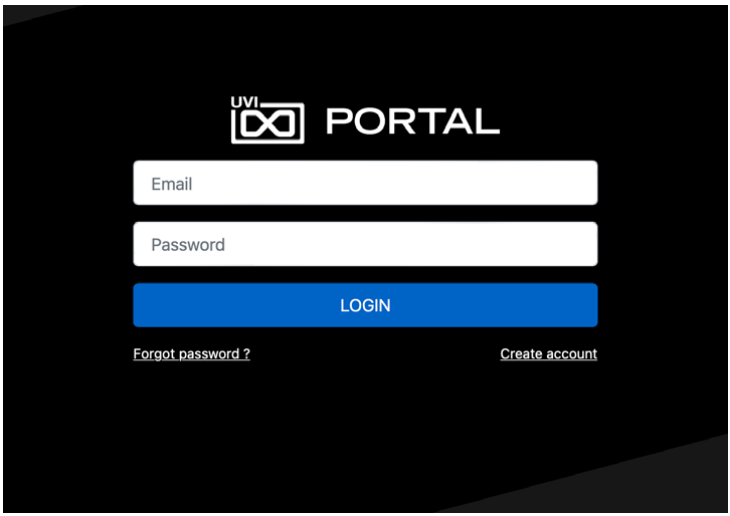
- Launch UVI Portal.
- Log in to your UVI account, the same one you use to log in at uvi.net/my-account.
If you don’t have a UVI account, click Create account.
Install Your Products
Installing a product takes three steps: Register, Download and Install, then Activate. How you register depends on your license: a permanent license, or a SonicPass subscription.
Register a Permanent License
Register a product purchased at uvi.net
- Open UVI Portal and log in to your UVI account.
- Locate your newly purchased products in the list.
- Click the Register button to open the Product Registration panel.

Register a product with a serial number
- Open UVI Portal and log in to your UVI account.
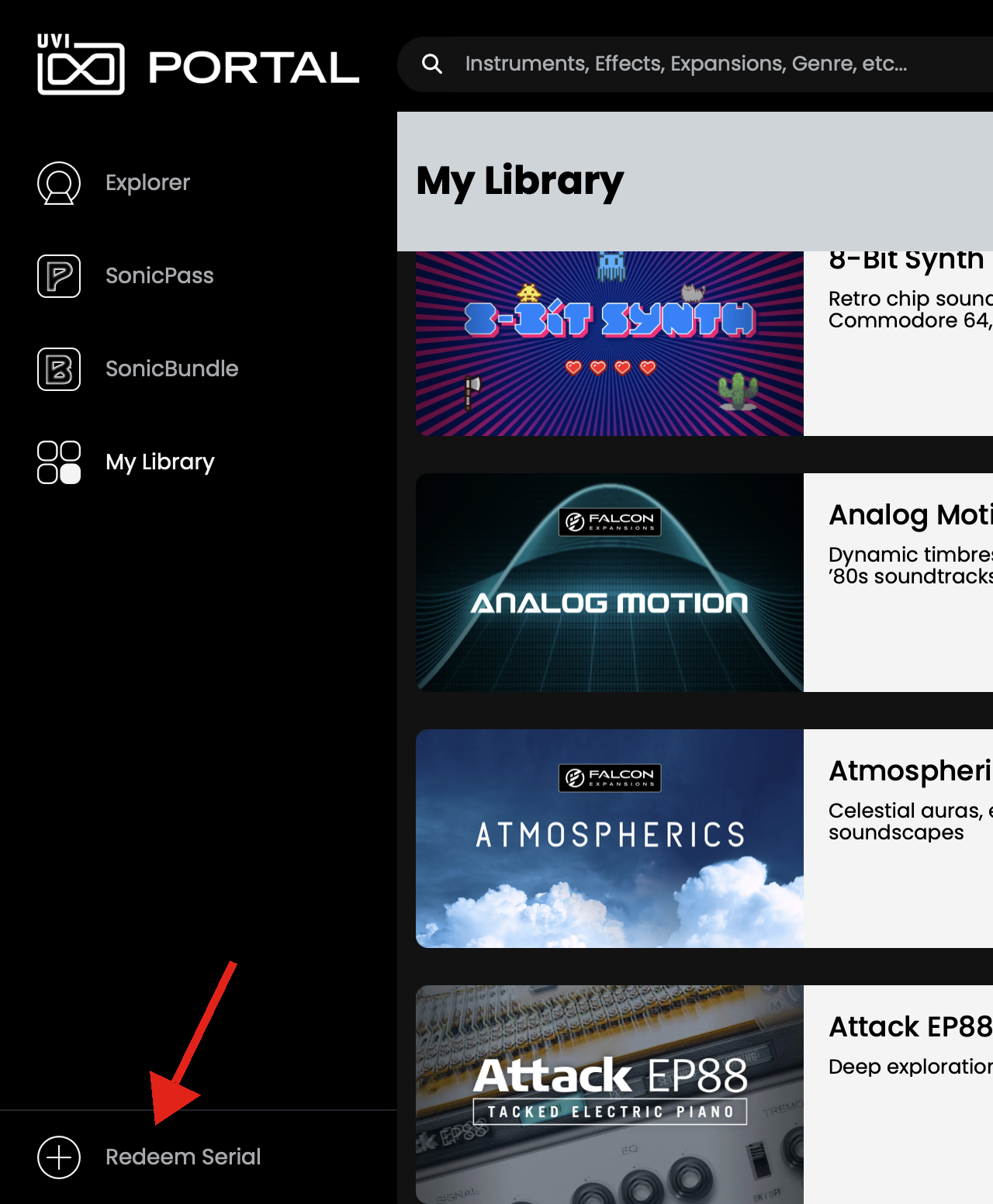
- Click Redeem Serial, at the bottom of the left panel.
- Enter your product serial number.
Link to your iLok account
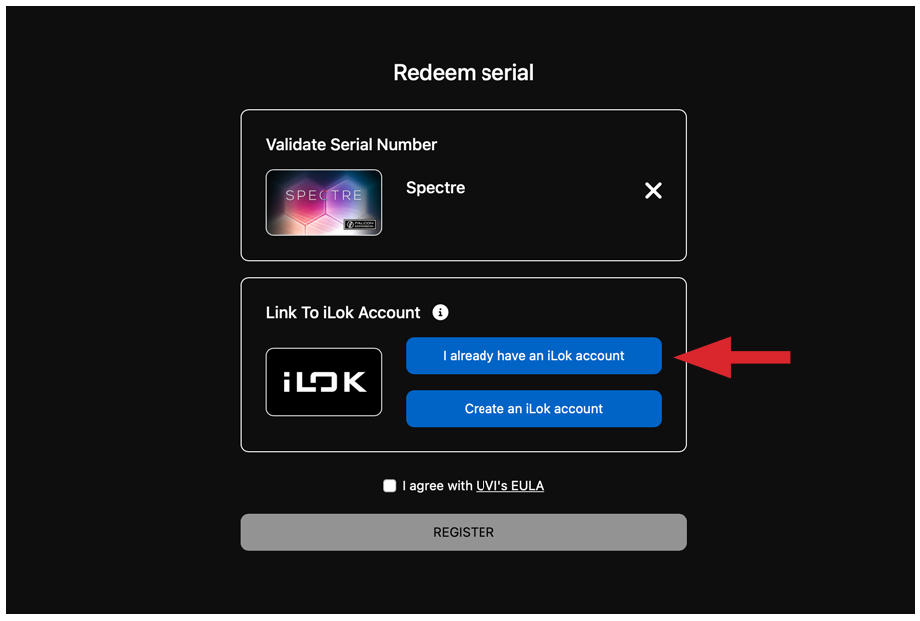
- If you already have an iLok account, click I already have an iLok account and log in.
- Double-check that your entries are correct, then tick the box to agree with the EULA.
- Click the REGISTER button to complete the registration.
Register a SonicPass License
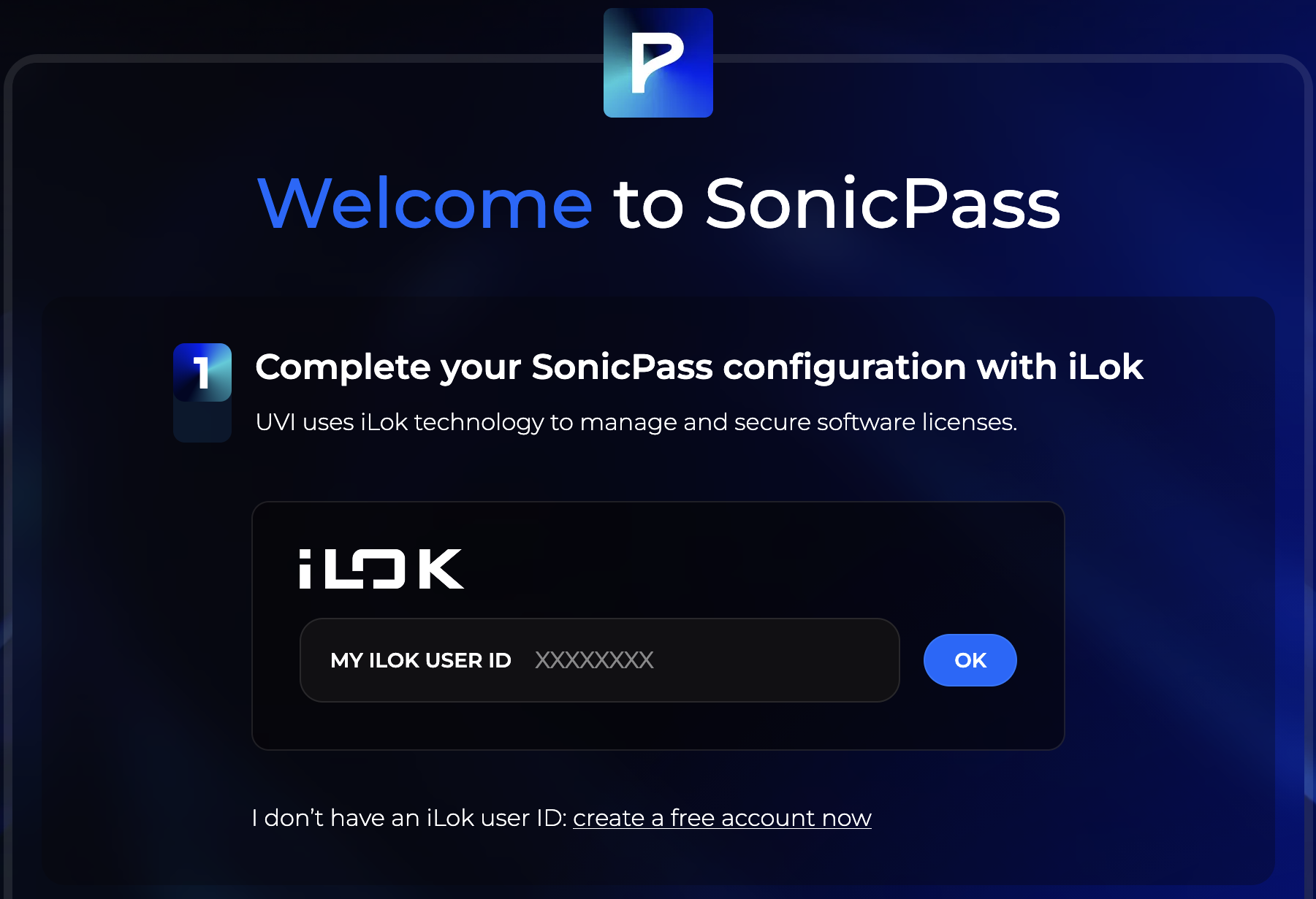
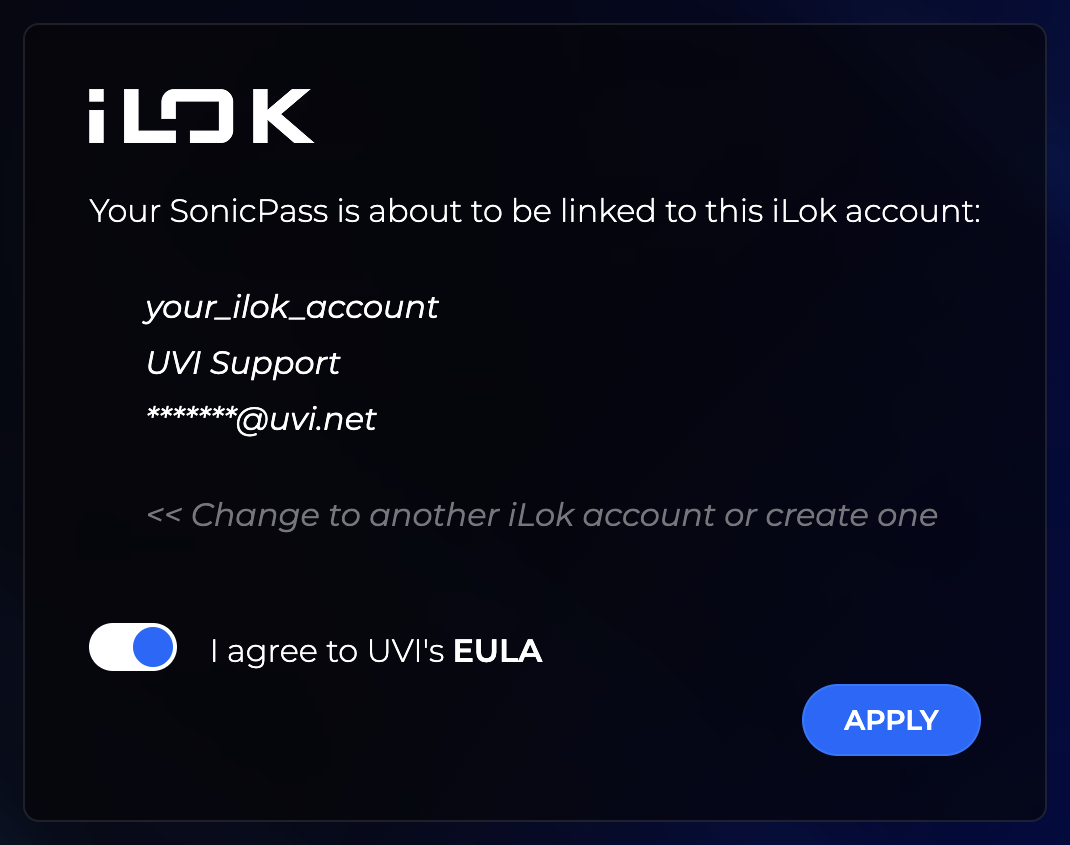
Link your SonicPass to your iLok account on the SonicPass Welcome page.
Link to your iLok account
-
If you already have an iLok account, enter your iLok User ID and click OK.
-
Double-check that your entries are correct, then turn on the switch to agree with the EULA.
-
Click the Apply button to complete the link.
Download and Install
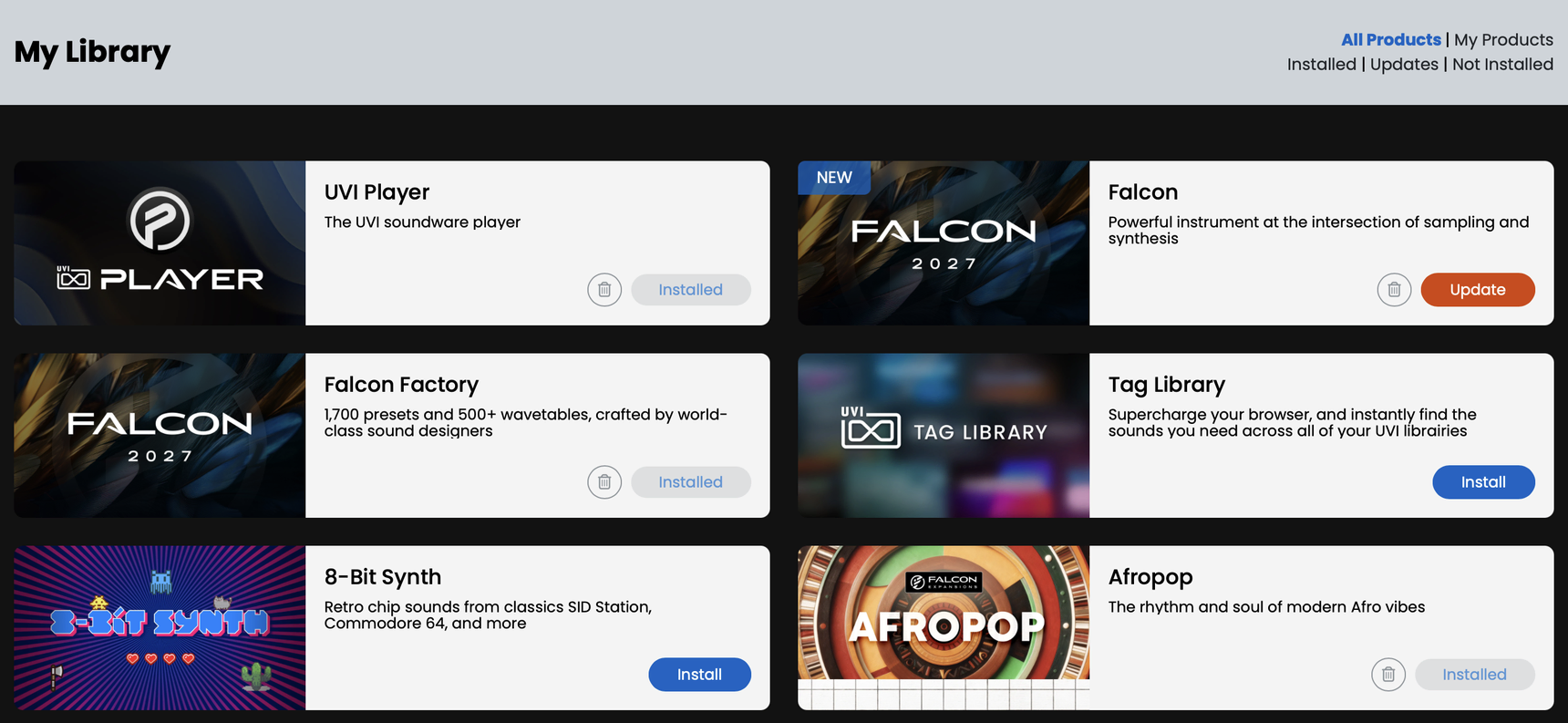
UVI Portal provides one-click automated download and installation for all your UVI products.
UVI Player, Falcon, or effects — click the Install button to start the download and installation process.
Soundware — click the Install button on the right of the product to start the download and installation process. If UVI Player or Falcon is not installed, or needs an update, click the button displayed on the right of your Soundware first (for instance, Download UVI Player). Wait until the process is completed, then click the Install button again to start the download and installation of your Soundware.
Activate
You may need to activate the product license on your device.
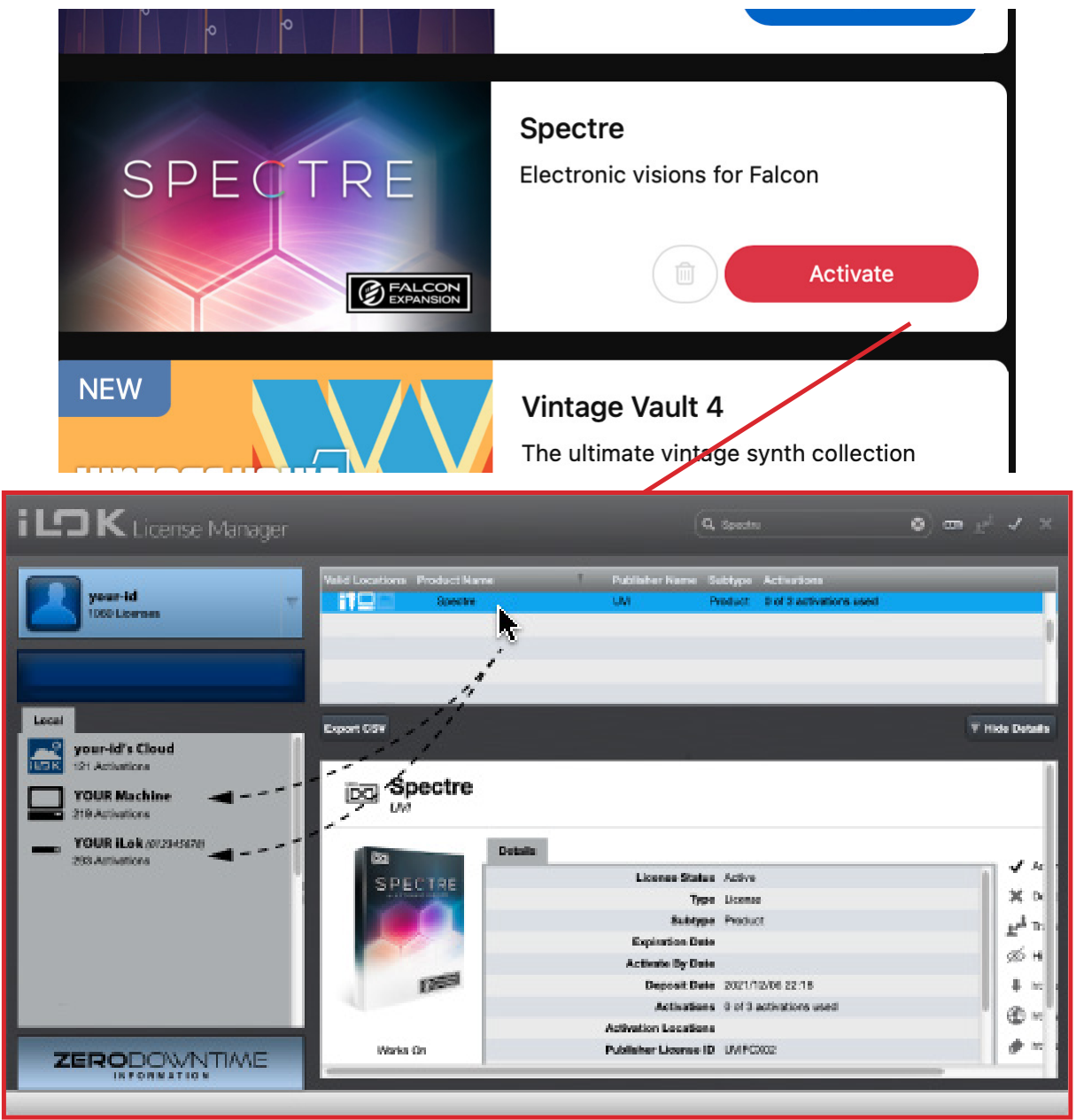
- Click the Activate button on the right of the product to open iLok License Manager.
- In iLok License Manager, click the Available tab (or choose View › Available Licenses), then drag the licenses to your computer or to an iLok dongle.
- Click Synchronize in the UVI Portal menu, or the button in the prompt. Your product no longer requires any action: launch it and have fun!
Update or Uninstall Your Product
Update Your Product
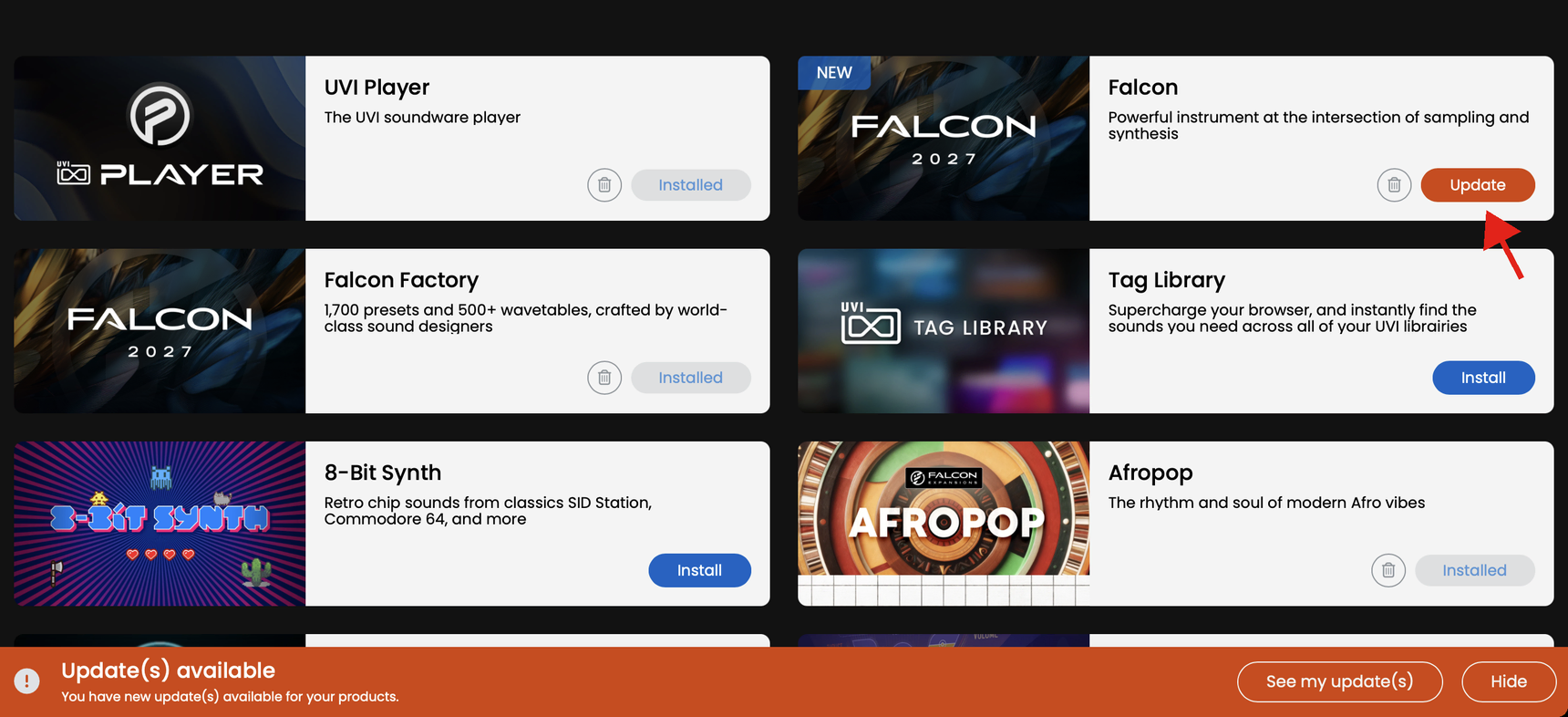
When a newer version of your product is available, an Update button and a notification are displayed. Click the Update button to start the download and update process.
Uninstall Your Product
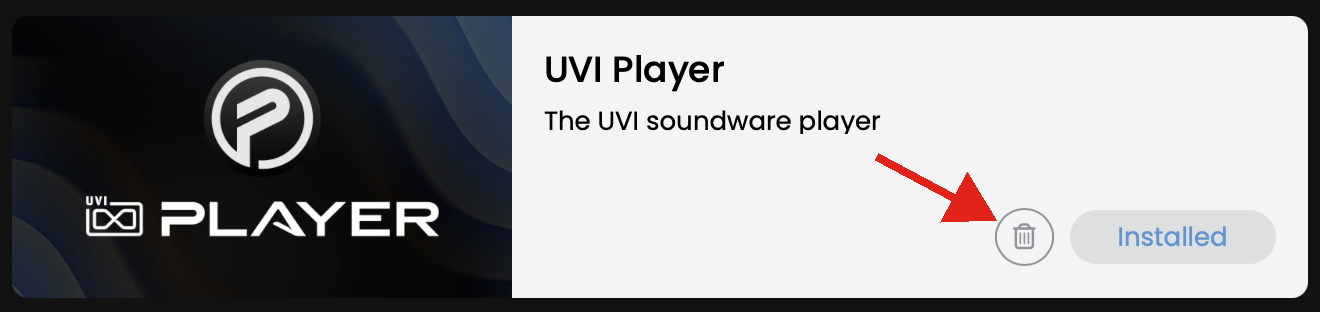
To uninstall a product from your computer, click its Trash icon button.
Product Information
Click a product to see more information about it: demo songs, details, user manual, or release notes.
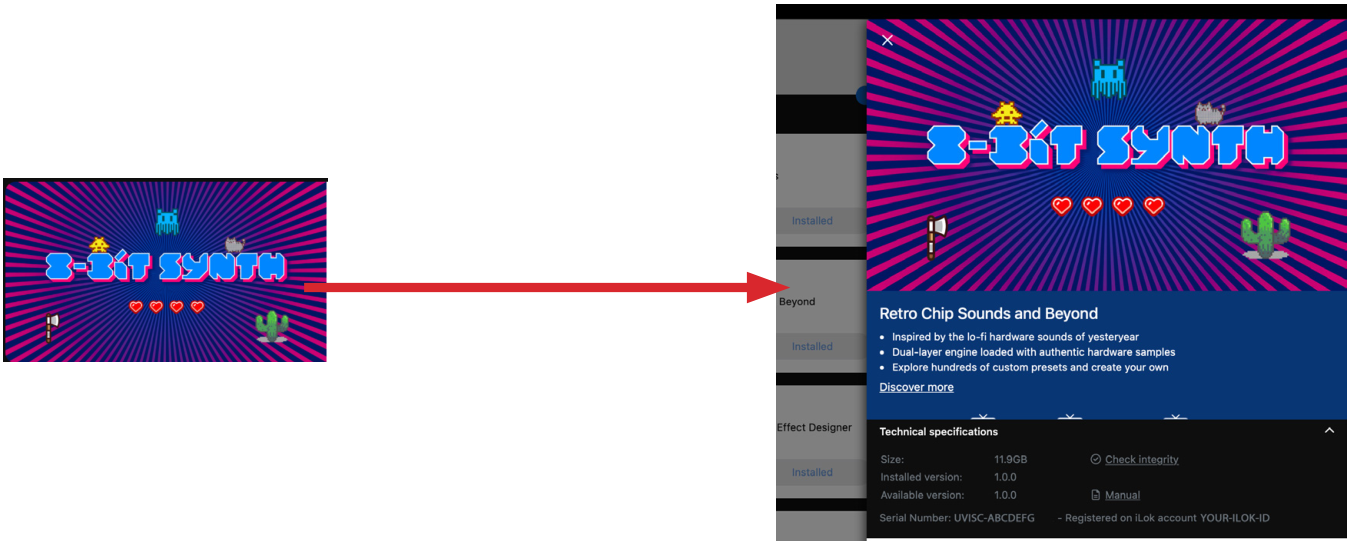
Click the small ⌃ button at the bottom right of the product information panel to show or hide the Technical specifications:
- Check integrity — manually checks the integrity of a Soundware.
- Manual — opens the product’s user manual.
- Release notes — opens the release notes of the product.
- Serial number and iLok ID — shows your registered serial number and the iLok ID of the product.
Find Your Products
My Library offers a few options to help you find products.
Filter the Products
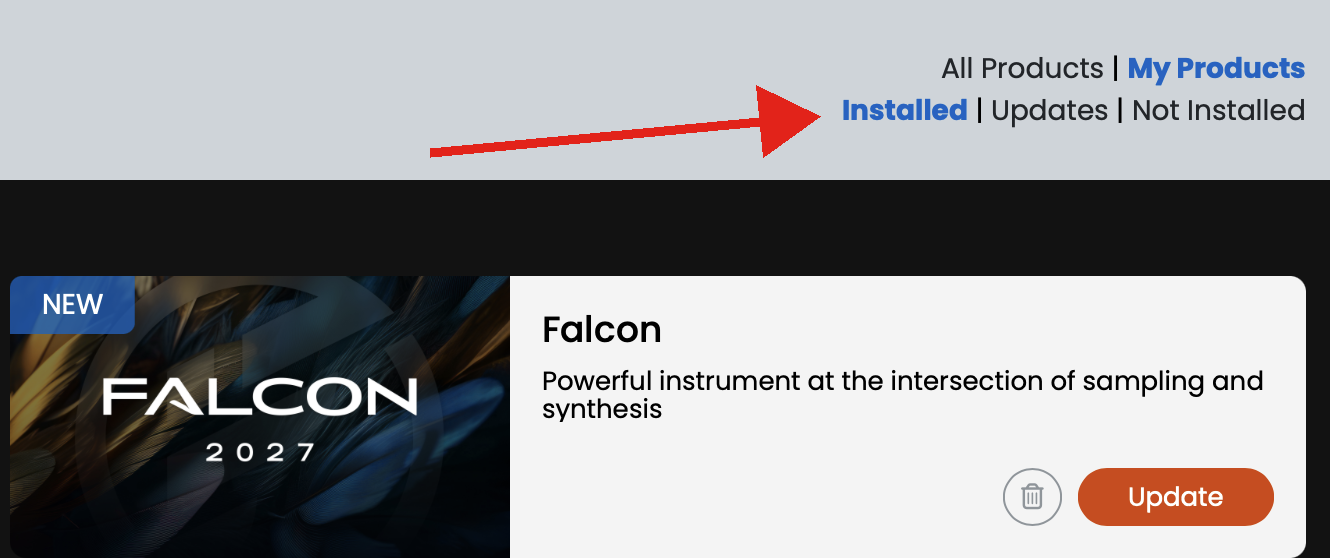
Filter the products with the options to the right of the My Library header: All Products or My Products, then Installed, Updates, or Not Installed.
Search the Products
Enter text in the search field to find products.

SonicPass
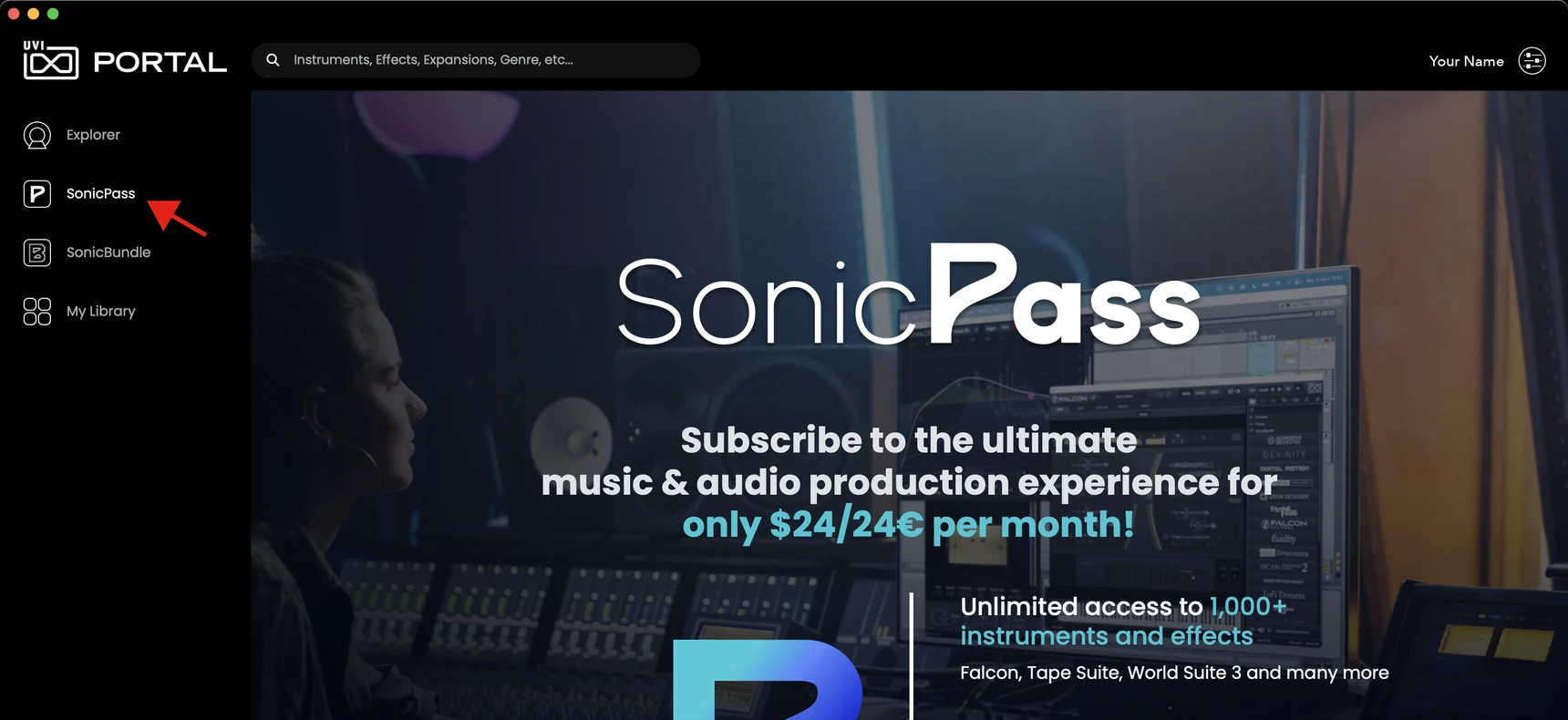
Click SonicPass in the left panel to see the details of the SonicPass subscription. You can subscribe to SonicPass from there or, if you are already a SonicPass member, manage your subscription.
Menus and Preferences
Account Menu
Click the button next to your account name to open the menu.
Preferences
Click the X button in the upper-right corner (upper-left on macOS) to close the Preferences.
Where your Soundware is installed (new installs only): by default, /Library/Application Support/UVISoundBanks on macOS and C:\Program Files\UVISoundBanks on Windows. Click Browse to choose another folder.
Where downloads are kept until they are installed; by default, the system temporary folder. Click Browse to choose another folder. UVI Portal refuses a folder it cannot write to.
UVI Portal transfers data over p2p networks by default; enable this to download directly instead. You can change it at any time, but p2p transfer can yield dramatically faster transfer times and is recommended in most cases.
Installs software and effects without showing their installer. On macOS you are asked for your password once; if the silent install fails, the installer opens as usual.
Runs the installer of software and effects as soon as its download completes. When disabled, the installer is placed in your Downloads folder (the temporary folder on Windows) and shown in the Finder or File Explorer, for you to run.
Products Menu
In the menu bar (macOS) or the window menu bar (Windows):
Troubleshooting Menu
In the menu bar (macOS) or the window menu bar (Windows):