Falcon’s Event section provides control over pre-synthesis data, namely the manipulation, analysis or generation of MIDI. Event processors can do anything from arpeggiating incoming notes or strumming them like a guitar to applying micro tunings, playing back MIDI files or creating generative sequences.
MIDI processors that act before synthesis; script processors extend them in Lua.
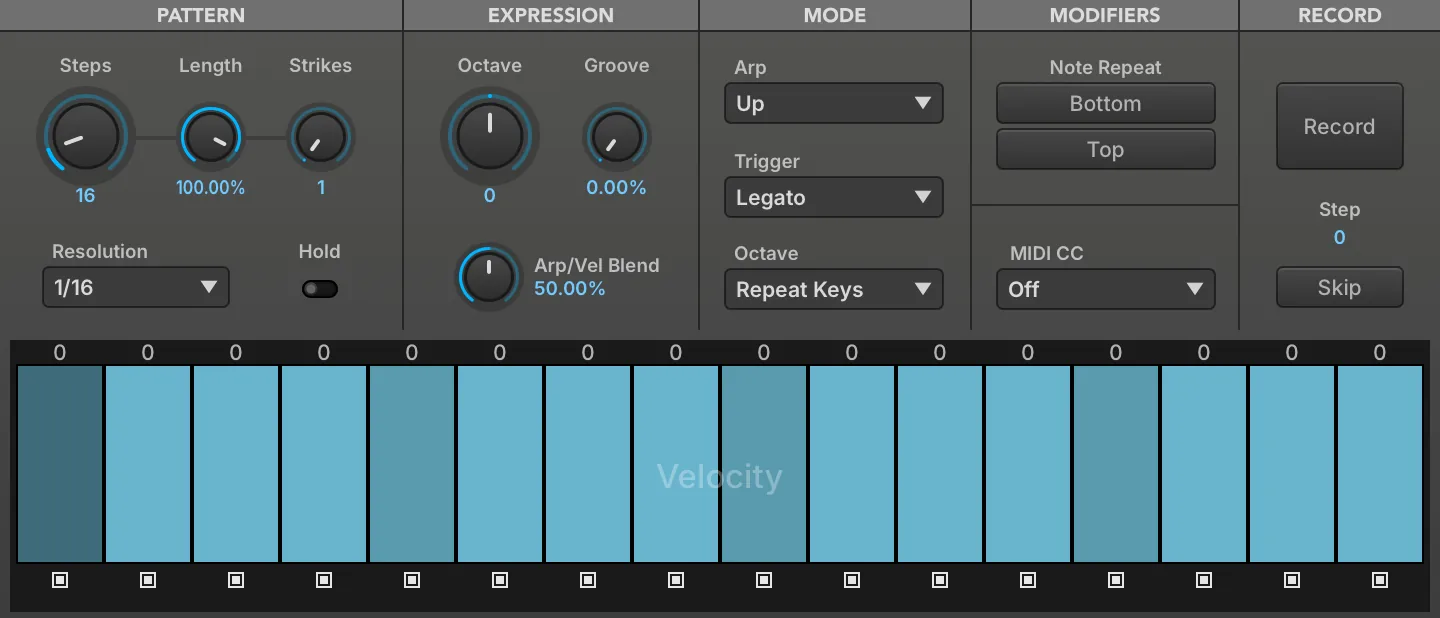
A step arpeggiator that plays held notes in a programmable, tempo-synced pattern, with per-step length, gate, pitch and velocity and 28 performance modes. It turns chords into rhythmic sequences, and its MIDI CC lane can drive modulation in time with them.
Read more ↓
An event processor that sends MIDI from any point in a patch to external software or hardware, on each event’s own channel or on a channel from 1 to 16. It lets Falcon’s notes and sequences play other instruments.
Read more ↓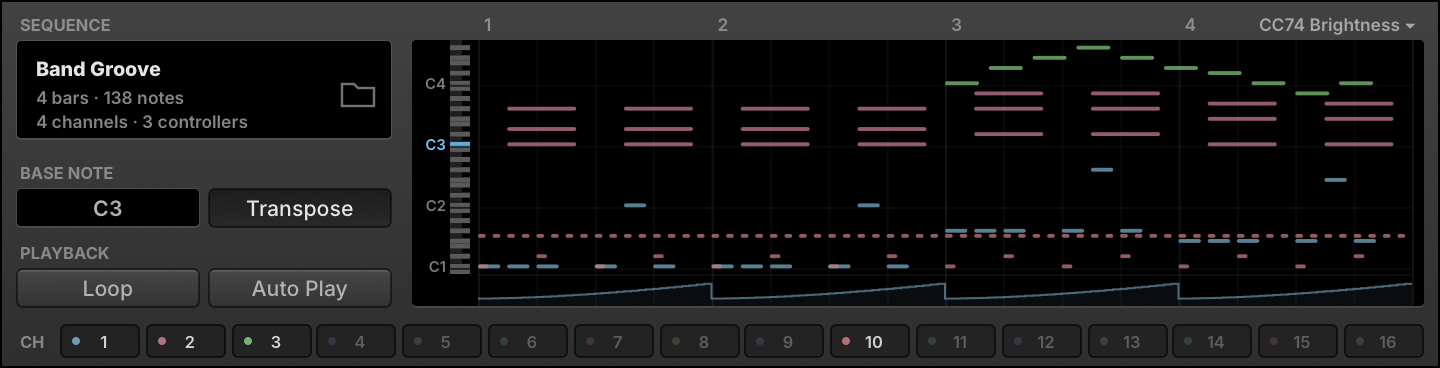
An event processor that plays back a Standard MIDI File, tempo-synced with Falcon, when its base note is played, once or looped. It adds prerecorded phrases and patterns to a program.
Read more ↓
An event processor that replaces standard twelve-tone equal temperament with alternate tunings imported from Scala files. It suits historical temperaments and the tunings of other musical traditions.
Read more ↓
An event processor that runs a Lua script, with the script’s own controls below its standard ones. It extends Falcon with custom event processing; the factory scripts cover analysis, harmonization, performance, sequencing and more.
Modules in this category Read more ↓- Cartesian Sequencer
- Chip Arp
- Drum Sequencer
- Euclidean Drum Sequencer
- Euclidean Keys Sequencer
- Euclidean Tonal Sequencer
- Gate Mod
- Gate Mod Bernoulli
- Gate Mod Poly
- MIDI CC LFO
- Motion Grid
- Node Arp
- Ostinato Arp
- Polyphonic Sequencer
- Probability Arp
- Rain Sequencer
- Slice Remixer
- Snowflakes
- Step Arp
- Step Line
- Warp Sequencer
- Waterfall
- Wave Sequencer
- Invert Pitch
- Limit Range
- Mapper
- MIDI CC Filter
- MIDI CC Redirect
- MIDI CC Smoother
- MIDI Delay
- MIDI Monitor
- MIDI Record
- MPE
- Pgm Change Switcher
- Transpose
- Velocity Test
Arpeggiator
Arpeggiator
The arpeggiator is a classic synthesizer effect which modifies incoming notes and plays them in a programmable pattern to create a dynamic sequence. Falcon’s Arpeggiator provides many advanced features such as per-step length, gate, pitch and velocity as well as 28 different performance modes.
Pattern
STEPS (1–128) sets the number of steps in the sequence, LENGTH (0–110 %) sets the gate length of each step, lower values result in more staccato and values >100% will slightly overlap the following note. STRIKES (1–4) sets the number of times each step will be triggered, values above 1 will repeat each step that many times before proceeding.
RESOLUTION sets the step length relative to the global BPM set in the host DAW, from 32 bars down to 64th note triplet. HOLD is a manual latch, enable it to infinitely sustain any active notes, disable it to end them.
Expression
OCTAVE (−6 to 6) sets the octave range of the pattern, GROOVE (0–100 %) sets the amount of groove to apply to the pattern, and ARP/VEL BLEND (0–100 %) sets the blend of the arpeggiator velocity value with the original note-on velocity values. At zero percent, the resulting velocity is fully controlled by the note velocity setting of the arpeggiator, and at 100% by the incoming note-on velocity values.
Mode
ARP selects the arpeggiator pattern to play, from a simple upward progression to zigzags, spirals, and more.
TRIGGER sets the arpeggiator trigger mode:
-
NOTE: Each note resets the arpeggiator position to the first step.
-
LEGATO: When multiple notes are played simultaneously, each new note continues from the current step.
-
SONG POSITION: The arpeggiator continually cycles, and any notes played are triggered at the current step.
OCTAVE (Repeat Pattern / Repeat Keys — not to be confused with the Expression OCTAVE knob above) sets whether the pattern of notes will be repeated individually within each octave (Repeat Pattern) or whether the pattern will be completed once in total across all notes in all octaves (Repeat Keys).
Modifiers
NOTE REPEAT (BOTTOM / TOP) repeats the top or bottom-most note of the pattern.
MIDI CC
Sets the controller number (0–127) that the MIDI CC lane sends, or Off to disable it.
Record
Allows you to record custom arpeggiator sequences using an external MIDI input, or using the built-in virtual keyboard in Falcon.
RECORD click to enable step recording, click again to finish.
STEP displays the current step while recording, and total step count when finished.
SKIP while recording, inserts a blank step.
Step Grid
Use the STEP GRID to set the value for each step. There are three independent layers to the step grid: VELOCITY, PITCH, and MIDI CC.
Each layer holds one parameter per step, so the sequence can be automated value by value. VELOCITY (0–100 %) sets the level a step plays at, which becomes a MIDI velocity of 1 to 127 before ARP/VEL BLEND mixes it with the incoming note velocity, while PITCH and MIDI CC hold the per-step values described below.
Step State Beneath each step is a toggle that can be pressed to set the step state. When enabled, the step outputs the value displayed in the bar above; when disabled, the step does not output any value.
Additionally, you can merge a step with the one before it to create steps that are longer than one step of the grid. To merge a step, hold the Shift key when pressing the step state button. The step state button for merged states is red.
Alternatively, you can tie a step to the one that follows it; both steps keep their own value, but the second is triggered in a legato style. To tie a step, hold the Alt/Option key when pressing the step state button. The step state button for tied states is blue.
STEP STATE is a parameter with four values. Off leaves the step silent while the sequence carries on to the next one, On plays a note, Merged gives the step’s time to the note before it rather than playing one of its own, and Tied plays a note that is released only once the following step has started, which is what produces the legato overlap.
-
Right-click anywhere on the step grid to change the sequencer page: Velocity, Pitch, or MIDI CC.
-
Click-and-drag across steps to draw values in a continuous motion.
-
Alt/Option-drag across steps to set their values to zero.
-
Scroll over a step to nudge its value up or down.
-
Double-click a step to numerically set the value.
Step Value
The size of the vertical bar within the step determines the step’s value. The larger the bar, the higher the value. Note that when viewing the Pitch layer, the bar is bipolar, with zero displayed in the vertical center of the step. To change the duration of the step, hold the Shift key while dragging the bar horizontally within its step.
The duration set that way is the STEP SIZE parameter (0–100 %), a proportion of the slot the step occupies in the grid. It multiplies the global LENGTH setting rather than replacing it, so a step at 50 % sounds for half as long as LENGTH alone would give it, and where steps are merged the note is sized over the whole merged span.
Pitch Offset
The values of the Pitch Layer are the offset applied to the incoming note, in semitones (−48 to 48), and are displayed as text above each step. You can also edit these values directly for more precise control.
MIDI CC
The values of the MIDI CC Layer are set as values from 0–127. You can double-click steps for precise control.
Every step that is not off sends its value when the sequence reaches it, merged steps included, as long as the MIDI CC selector is not set to Off.
MIDI Out
MIDI Out
Take control of external software/hardware directly from Falcon, at any point in your patch.
Set MIDI CHANNEL for output, select AS IS to leave each event on the channel it arrived on, or select any channel from 1 - 16.
MIDI Player
MIDI Player
The MIDI Player module plays back a Standard MIDI File, tempo-synced with Falcon.
To load a MIDI file, press the BROWSE button and choose a Standard MIDI File using the standard file browser, or drag-and-drop a .mid file onto the module. When a MIDI file is loaded, its name is displayed next to SEQUENCE NAME.
The BASE NOTE (0–127) chooses which note will trigger playback of the MIDI sequence. Other notes will play back as usual. When TRANSPOSE is enabled, every note will trigger playback of the MIDI sequence, transposed relative to the Base Note. When disabled, only the Base Note will trigger playback.
When the MIDI file is triggered, it will play back once. If LOOP is enabled, the MIDI file will be looped continuously. Additionally, AUTOPLAY can be enabled to automatically begin MIDI file playback when Falcon begins playing.
By default, the MIDI Player will play back all sixteen channels saved in the MIDI file. Press a channel’s BYPASS button to bypass it.
Micro Tuner
Micro Tuner
The Micro Tuner provides alternate tunings to the standard twelve-tone equal temperament tuning.
The NOTE GRID displays the mapping of each note in each octave. In standard tuning, each note is mapped to a whole number: C-2 = 0.00, C#-2 = 1.00, D-2 = 2.00, and so on. The note grid is display only; to edit the tuning assignments, import Scala files as described below.
The Micro Tuner module’s preset menu has three additional items in its Preset File menu:
-
IMPORT SCALA TUNING: Import a .scl file.
-
IMPORT SCALA MAPPING: Import a .kbm file.
-
IMPORT ANAMARK TUNING: Import a .tun file.
You can also drag-and-drop .scl, .kbm, and .tun files directly onto the module.
For more information on Scala, see: http://www.huygens-fokker.org/scala.
Script Processor
Script Processor
The Script Processor module provides general event processing capabilities beyond the specific event processors described earlier.
This module has some standard controls at the top, with the script-defined controls below.
Standard Controls
To load a script, press the LOAD A SCRIPT button and choose a UVIScript file from the standard file browser. When a script file is loaded, its SCRIPT NAME is displayed in the center of the script module title bar, and its script-defined controls will be displayed below.
To edit the script file, press the EDIT SCRIPT IN EXTERNAL EDITOR button and the script file will be opened in your default text editor application.
If you would like to add a password to the current script, press the PROTECT SCRIPT button and enter a password. After a script is protected, you must enter the script password to open the script for editing.
Press the RELOAD CURRENT SCRIPT button to reload the current script from disk, and reset its parameters to their default values. Hold the Alt/Option key while reloading to keep the current state of the script parameters. The WATCH FOR SCRIPT CHANGES option will automatically reload the script whenever the script file is modified; this can be useful while developing a script and making repeated changes.
The script console displays debug and print messages and is useful for debugging scripts. Toggle the SHOW/HIDE CONSOLE OUTPUT button to show or hide the script console. Press the CLEAR CONSOLE OUTPUT button to clear the current console messages.
Script-Defined Controls
The script itself defines what sort of controls will be displayed. This includes knobs, buttons, menus, and other controls similar to those seen in other Falcon modules.
More Information
For more information on UVIScript, see: Scripting in Lua.
Analysis
Chord Recognition

Chord recognition: Names chord currently played.
CHORD displays the chord name currently played.
Virtual Pitch

Virtual Pitch: Real-time virtual pitch detection.
VIRTUAL PITCH displays the most likely root of the notes you are holding — the pitch class with the strongest virtual-pitch score.
VIRTUAL PITCH 2 displays the second most likely root — the runner-up interpretation of the same chord.
CHROMATIC DISPLAY shows the virtual-pitch strength of all twelve chromatic pitch classes, scaled so the strongest reads full height; the tallest bar is the root shown in VIRTUAL PITCH.
Effects
Ensemble

Play 5 voices using adjacent detuned sample-based key zones.
PAN SPREAD sets the stereo spread of the ensemble voices.
TIME SPREAD sets the time interval of the ensemble voices.
MIDI Pitch Delay

Classic MIDI event delay with pitch drift support.
DECAY sets the decay time of the effect.
TARGET PITCH sets the pitch shift amount for incoming notes.
RAMP TIME sets the ramp time of the effect.
SPEED sets the speed of the delay.
JITTER (0–100 %) randomizes the time between repeats, by up to ± the SPEED delay time at 100 %.
MIX sets the mixing level (velocity) of the effect.
Note Pan

Generate pan values for each key pressed with fixed and random options.
MODE sets the panning mode per note.
-
FIXED outputs the fixed stereo position set by the note’s dial.
-
ALT alternates the pan left and right with each keypress; the dial sets the depth of the alternation.
-
RAND outputs a random pan position with each keypress; the dial sets the depth of the randomization.
LINK enable to adjust all note parameters simultaneously.
Shepard

Shepard tone effect.
PARTIALS sets the number of partials.
STEP sets the number of steps per partial.
SPEED sets the speed of the pitch change.
DIRECTION sets the direction (up or down) and depth of pitch change.
Tape Mod

Vary your pitch with wow and flutter emulation for a lo-fi vibe.
FLUTTER FREQUENCY sets the flutter frequency and DEPTH sets the flutter modulation depth.
WOW FREQUENCY sets the wow frequency and DEPTH sets the wow modulation depth. CC sets the MIDI CC number for real-time control.
Timbre Shifting

Use a pitched adjacent sample-based key zone to change the instrument timbre.
SHIFT changes tonal color based on the adjacent samples.
Tremolo

A MIDI volume modulator.
FREQUENCY sets the speed of the effect.
Unison

Play up to 10 detuned voices.
NUMVOICES sets the number of the unison voices. DETUNE sets the interval spacing of the voices in cents.
Vibrato

A MIDI pitch modulator.
FREQUENCY sets the speed of the effect. DEPTH sets the amount of the effect.
Harmonization
Chord Bank
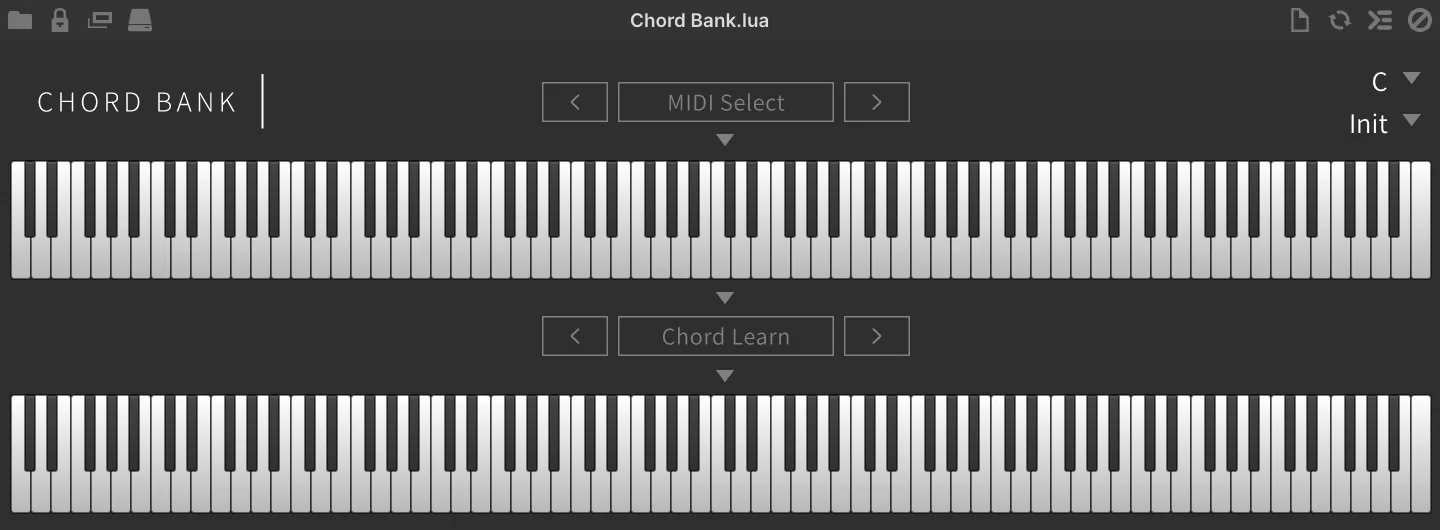
Create and assign chords to each MIDI key independently.
Select a root KEY and preset from the CHORD PRESET menu, or manually create and assign your own.
The UPPER KEYBOARD shows your MIDI input, use this to select a key to assign notes to. A GREEN key indicates there is an existing, custom note assignment; RED indicates the key is selected.
The LOWER KEYBOARD will display the note assignments for the key currently selected in the UPPER KEYBOARD, the keys currently assigned will show in RED.
To create or edit assignments using a mouse: Select a key in the UPPER KEYBOARD and then make assignments in the LOWER KEYBOARD.
To create or edit assignments using a MIDI keyboard as input:
Click MIDI SELECT, then press a key on your keyboard to select a note - it will show as RED in the UPPER KEYBOARD to indicate it’s active.
Click CHORD LEARN, then press keys on your keyboard to assign or unassign them - they will show as RED in the LOWER KEYBOARD to indicate they are assigned.
Use the ARROW KEYS (< and >) below each keyboard to shift the notes left or right.
Chord Generator
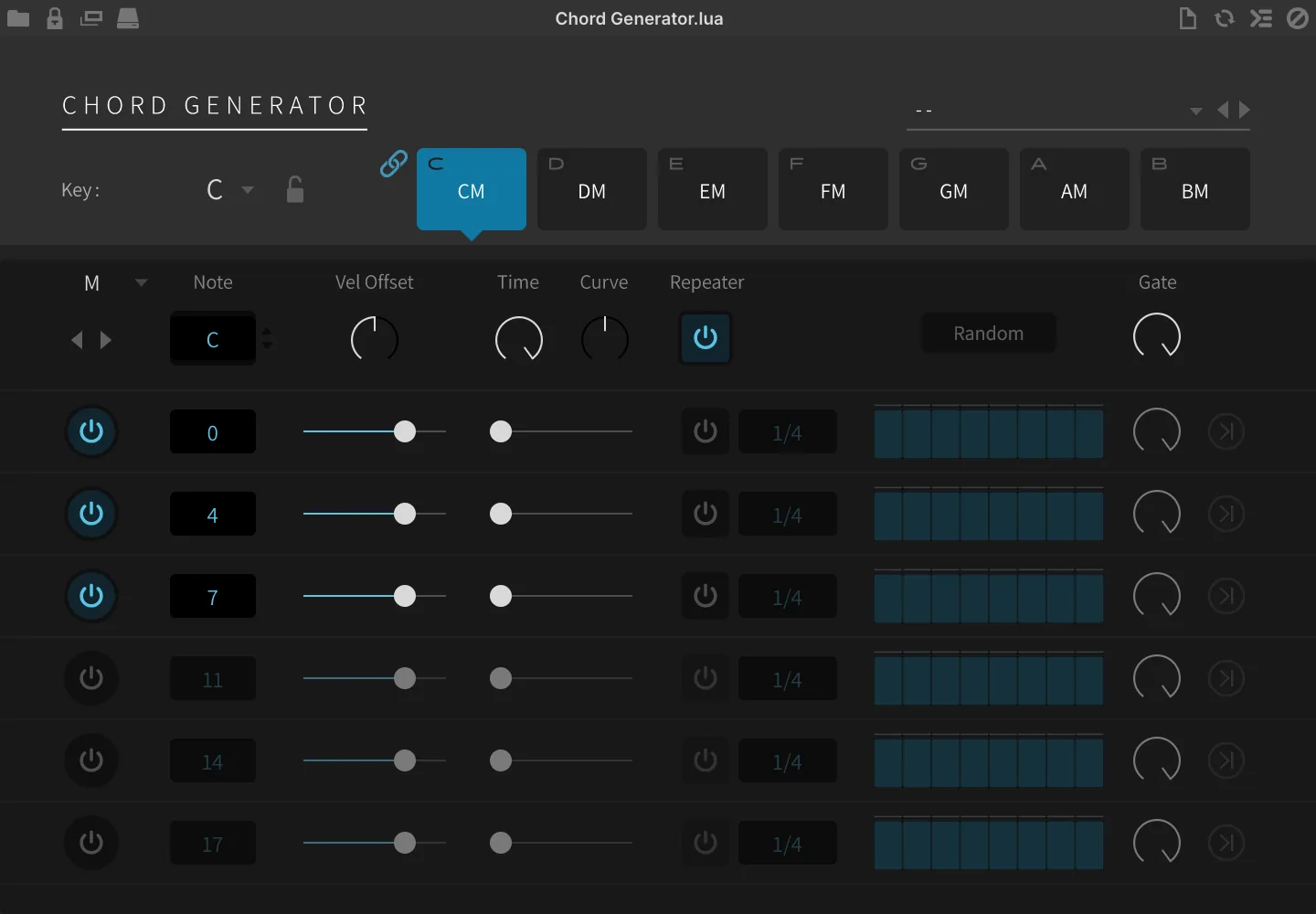
Instantly unlock complex chords and arpeggios. Map 7 customizable chords to single keys, explore a vast library of presets and progressions, and add rhythmic variation with a per-note step-sequencer for endless harmonic inspiration.
PRESET recalls a complete Chord Generator configuration across all 7 chord slots at once. You can scroll through these quickly using the < and > buttons.
KEY selects the global root key. LOCK prevents key changes when selecting presets.
CHORD SLOT Click a slot or press the MIDI note to display the corresponding editor.
LINK icon allows you to adjust the same parameters across all chord slots at once.
The top row holds the settings of the selected chord slot:
CHORD PRESET sets the chord voicing for the currently selected chord slot only, chosen from a number of useful premade configurations. You can scroll through these quickly using the < and › buttons.
NOTE sets the root note of the chord as indicated on the slot labels.
VEL OFFSET, TIME and CURVE set the offset of the incoming note velocity, time and time offset curve.
REPEATER (power) global bypass for note repeat effects. Click the RANDOM button to randomize the repeat patterns. GATE sets the global gate amount.
The following rows are the settings for each note:
POWER activates the chord note.
NOTE (−48–48 st) sets the note’s offset in semitones from the chord’s root.
VEL OFFSET and TIME set the offset of the incoming note velocity and time offset.
REPEATER (power) activates a note repeat effect.
SPEED sets the repeater speed.
STEPS customize the note repeat pattern, where step value equals velocity.
GATE sets the gate amount.
>|| switch activates one shot mode.
Chorder
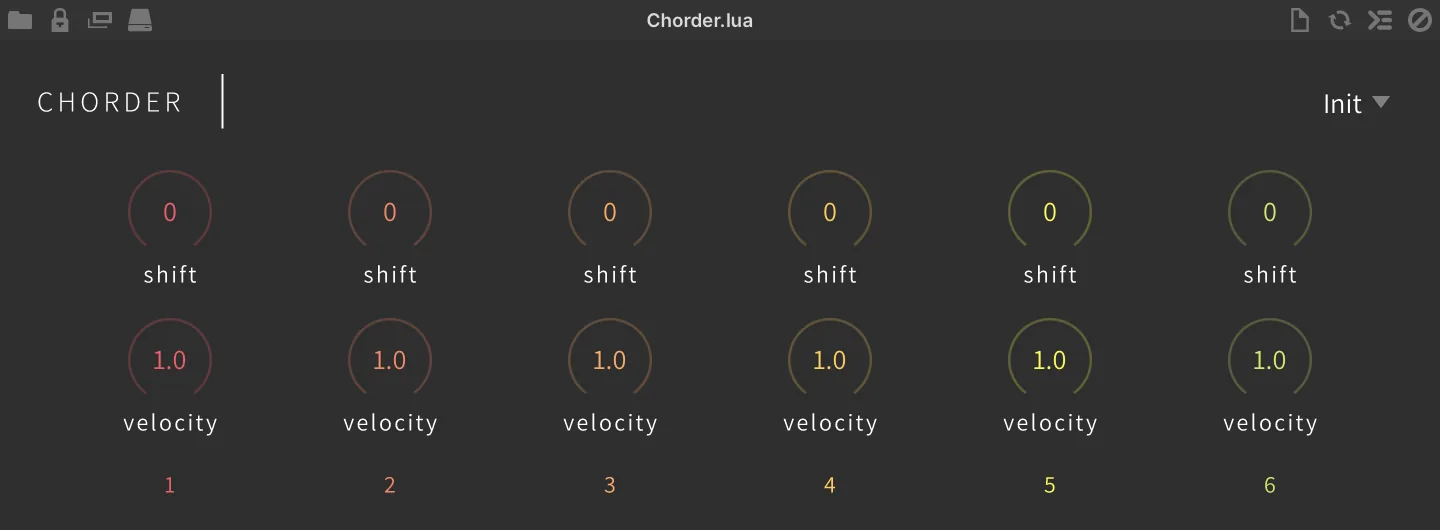
Create up to 6-voice chords using shift with custom velocity.
SHIFT sets the semitone offset (+/-36) from the note pressed. The voice will be disabled when set to 0.
VELOCITY (0.01–2) scales the incoming note velocity for the corresponding note in the SHIFT row.
PRESET includes a collection of premade chords.
Chorder Extended
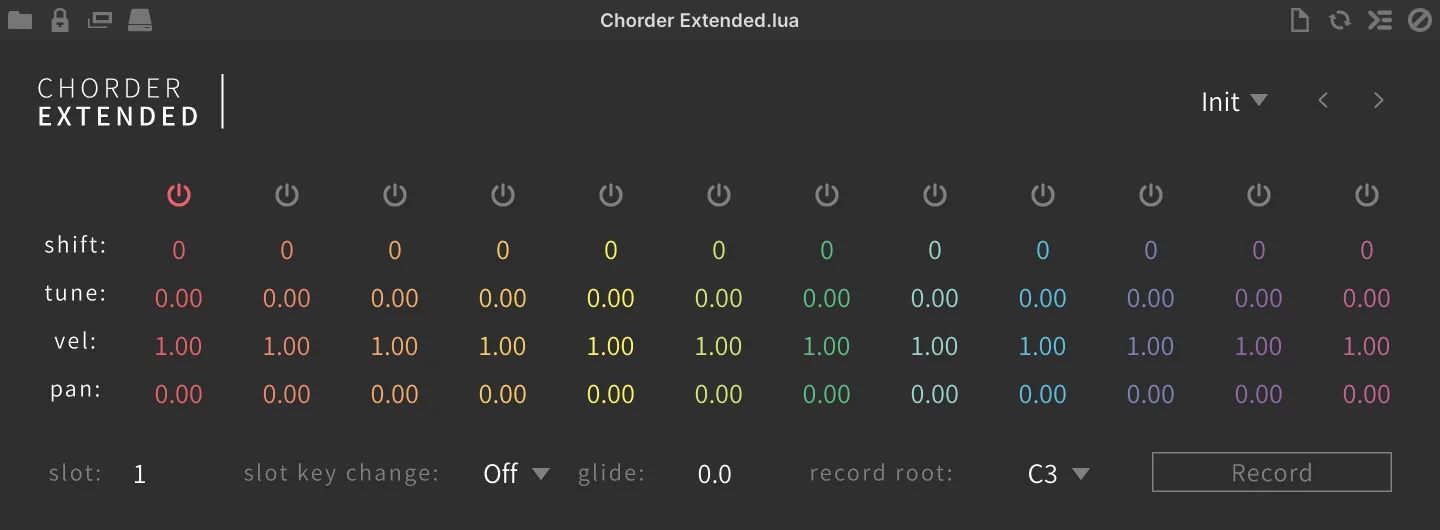
A more fully featured chord designer, CHORDER EXTENDED (CHORDER 2) allows the creation of 12-note chords with the addition of fine tune, pan and glide.
Power toggles the voice on/off.
For each note, SHIFT, TUNE, VELOCITY and PAN can be customized by click-dragging or scrolling with your mouse wheel.
CHORD PRESET contains a number of useful premade chord configurations including microtonal variations. You can scroll through these quickly using the < and > buttons.
Chorder 2 allows up to 8 configurations to be stored and recalled at any time using SLOTS and key changes (using MIDI notes typically outside of the playable range to change settings).
To use SLOTS select a slot by click-dragging or scrolling with your mouse wheel, select which MIDI note you want to use to recall this slot in the SLOT KEY CHANGE menu, choose a chord preset or configure your own. Repeat for each slot as needed, perform with a MIDI keyboard or desired MIDI stream.
GLIDE sets the glide time of the chord changes.
RECORD ROOT sets the root key from a drop-down menu, or click RECORD button and use an external MIDI keyboard to set.
Scale
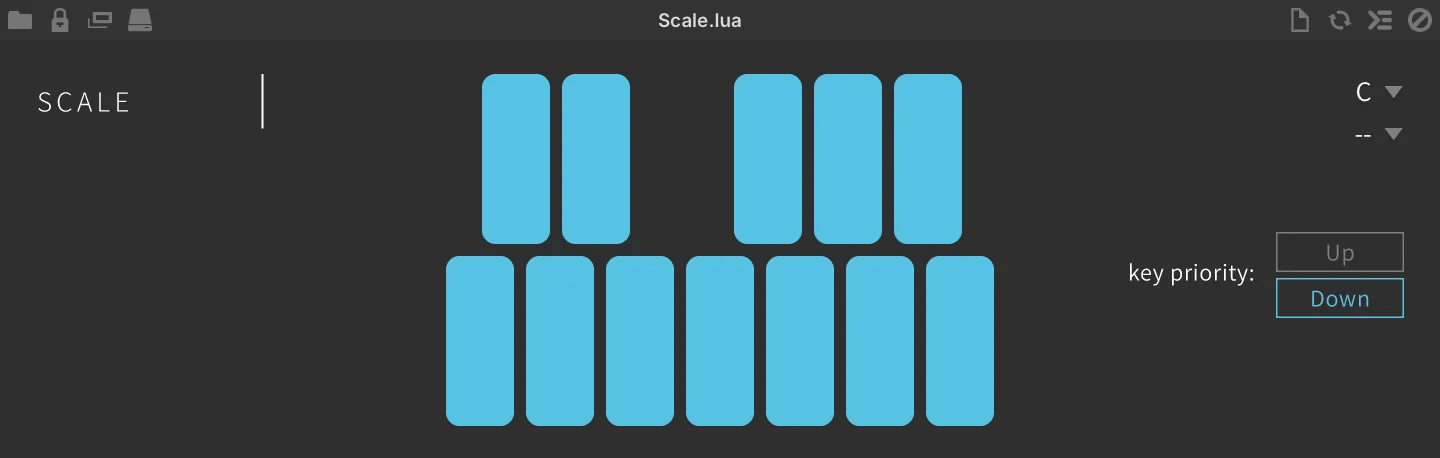
Snap notes of your MIDI input to a key and scale of your choice.
ROOT and SCALE set the root key and the scale from the drop-down menus.
NOTE buttons set the allowed notes individually.
KEY PRIORITY sets the priority of the incoming notes, lowest note or highest note played.
Tonal Harmonizer
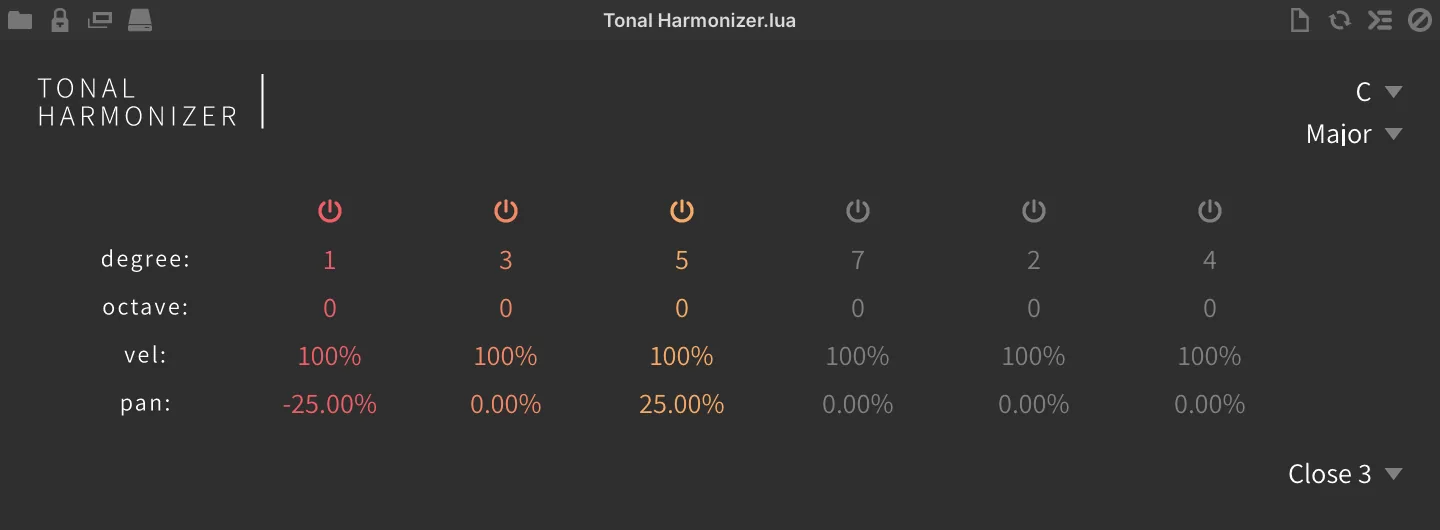
Create chords using scale degrees.
Sets the KEY and MODE of the scale using the drop-down menus.
POWER toggles each of the six harmony voices on/off.
For each note in your chord you can adjust the DEGREE (1–7), the transposition of the incoming note in scale degrees, OCTAVE (−2 to 2), VEL AMOUNT (0–200 %), which scales the incoming note velocity for that voice, and PAN (−100–100 %).
VOICING contains a number of useful presets, which also set the number of voices used.
Performance
Chord Strum

Plays back held notes sequentially at a user-defined speed.
Hold down any number of notes and press the Trigger Key to play them back sequentially at the Strum Speed. Notes will continue to be sustained until the Trigger Key is released.
TRIGGER OCTAVE sets the note octave of the Trigger Key (C), from −2 to 8. With the default setting of 4, holding C4 will trigger the strum playback.
STRUM SPEED sets the speed of the strum (inter-note) in milliseconds (1 to 200).
Legato

Crossfade the attack of legato-played keys for more realistic performance.
FADE sets the crossfade time in ms (10–100). RETRIGGER toggles retrigger mode on/off.
Modwheel Glissando

Use MIDI CC to strum pressed keys for a harp or guitar-like effect.
To use: hold down notes and move your keyboard’s modwheel or MIDI controller to strum the held notes across all octaves.
Select the controller number (0–127) by click-dragging or scrolling with your mouse wheel over the CONTROLLER field.
Clicking LEARN will set CONTROLLER to the next incoming MIDI CC number.
Portamento

MIDI glide with fade time.
FADE sets the portamento glide time in ms (1–500).
Portamento Stepped

MIDI step glide with fade time.
TIME sets the portamento glide time in ms (5–1000).
Strum

Play incoming MIDI notes like a guitar.
DIRECTION sets the pitch order in which notes will be played: up, down, up and down or random.
LAG sets the lag time for incoming notes.
HUMANIZE randomizes the trigger timing of incoming notes for a less-perfect sound.
VEL. SENS. (0–100 %) shortens the LAG time as velocity increases.
Strum Wheel

Harp-like strumming using MIDI CC.
NOTE LENGTH sets the note duration. LAG sets the lag time for incoming notes. MIDICC sets the MIDI CC number for control.
Physics
Balloons
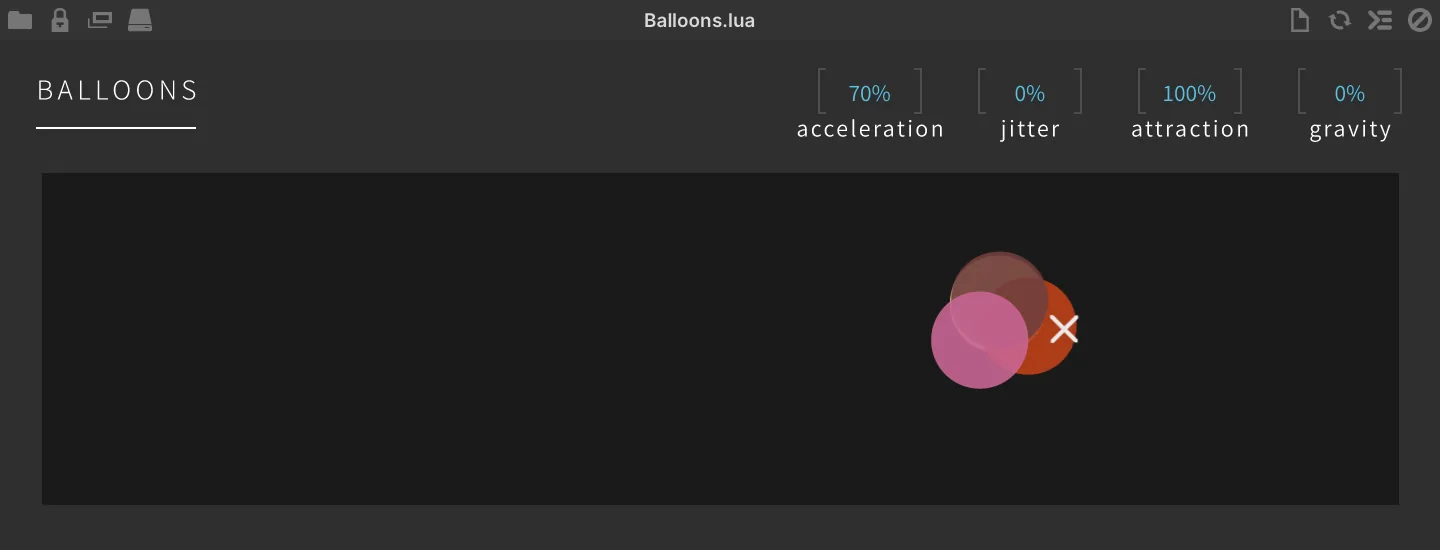
The note repeater uses balloons bouncing to generate note repeats.
Click and drag the X in the center display to set the direction of the balloon launches by note trigger.
ACCELERATION sets the initial speed of the balloon.
JITTER adds variation (quiver) of the balloon’s movement.
ATTRACTION adds the attraction between the balloons.
GRAVITY sets the gravity (damping) of the balloon’s vertical movement.
Boids
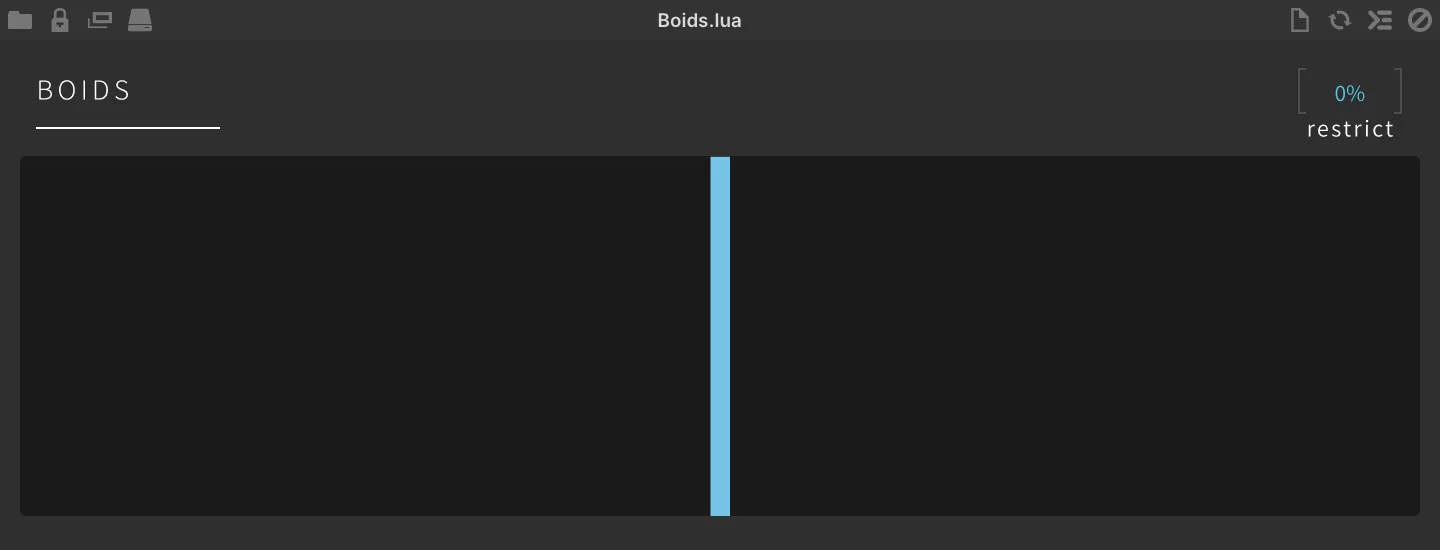
The note repeater uses a flock of boids to generate note repeats.
The boids will generate the note when they cross the CENTER LINE of the display, and the line can be dragged to move the position.
RESTRICT sets the size of the space that boids fly around.
Sequencing
Cartesian Sequencer
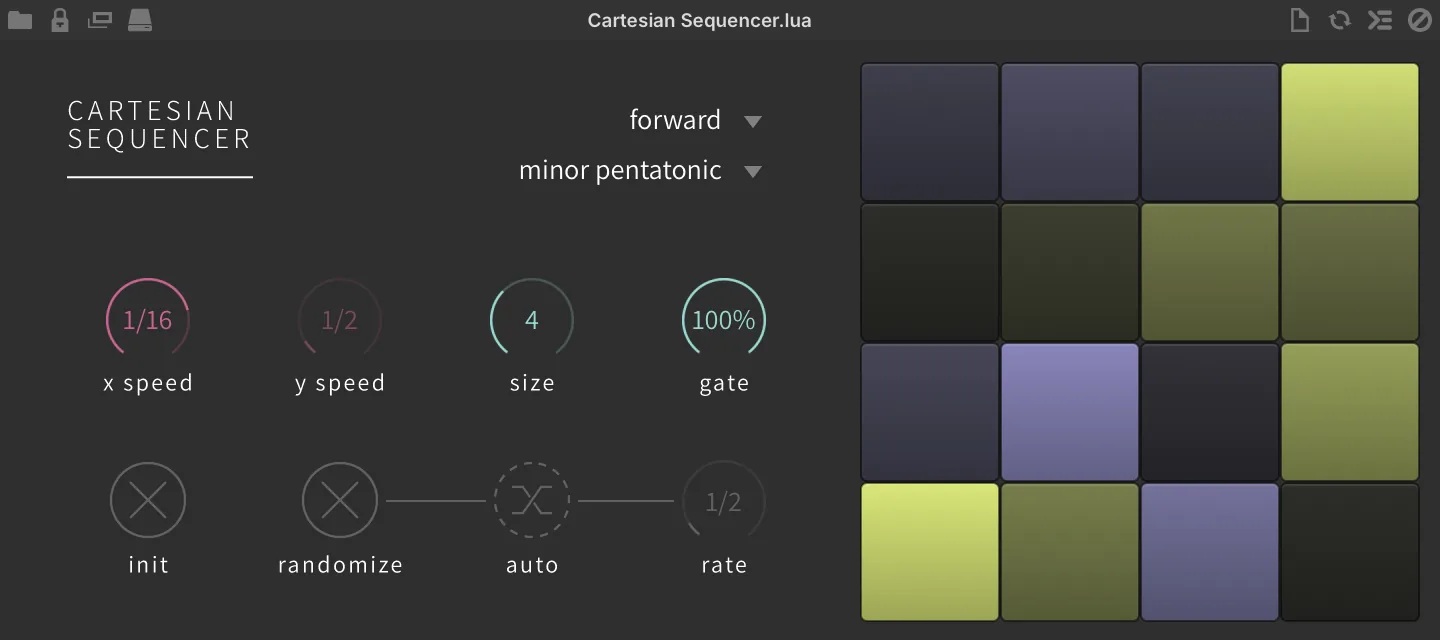
Cartesian sequencer with discrete X/Y movement and auto randomizer.
MODE sets the sequence direction from the drop-down menu.
-
FORWARD plays from upper left to right, then next row.
-
BACKWARD plays from upper right to left, then next row.
-
SPLIT DOUBLE TRIGGER plays from the upper left, depending on the X and Y speed settings.
INIT initializes the grid settings.
RANDOMIZE click to randomize the grid settings. AUTO enables automatic randomization at an interval set by RATE. RATE sets the auto randomize trigger interval.
SCALE sets the scale from a drop-down menu.
SEQUENCE GRID drag the grid to set the pitch-shift value of the grid.
X SPEED sets the playback speed in FORWARD and BACKWARD mode, and the X axis playback speed in SPLIT DOUBLE TRIGGER mode.
Y SPEED sets the Y axis playback speed in SPLIT DOUBLE TRIGGER mode.
SIZE sets the grid size. E.g. “4” is a 4x4 grid, “8” is an 8x8 grid.
GATE sets the gate duration of the next note played.
Chip Arp

Quickly create classic video game arpeggiations.
PATTERN sets the arp pattern from the drop-down menu. OCTAVE (−5 to 5) sets the octave shift up or down of the arpeggiation.
NOTE REPEAT (1–5) sets the number of the repeats.
GATE (1–100 %) sets the gate duration of the arp notes. LOOP enables loop arpeggiation. SPEED sets the rate of the arpeggio.
Drum Sequencer
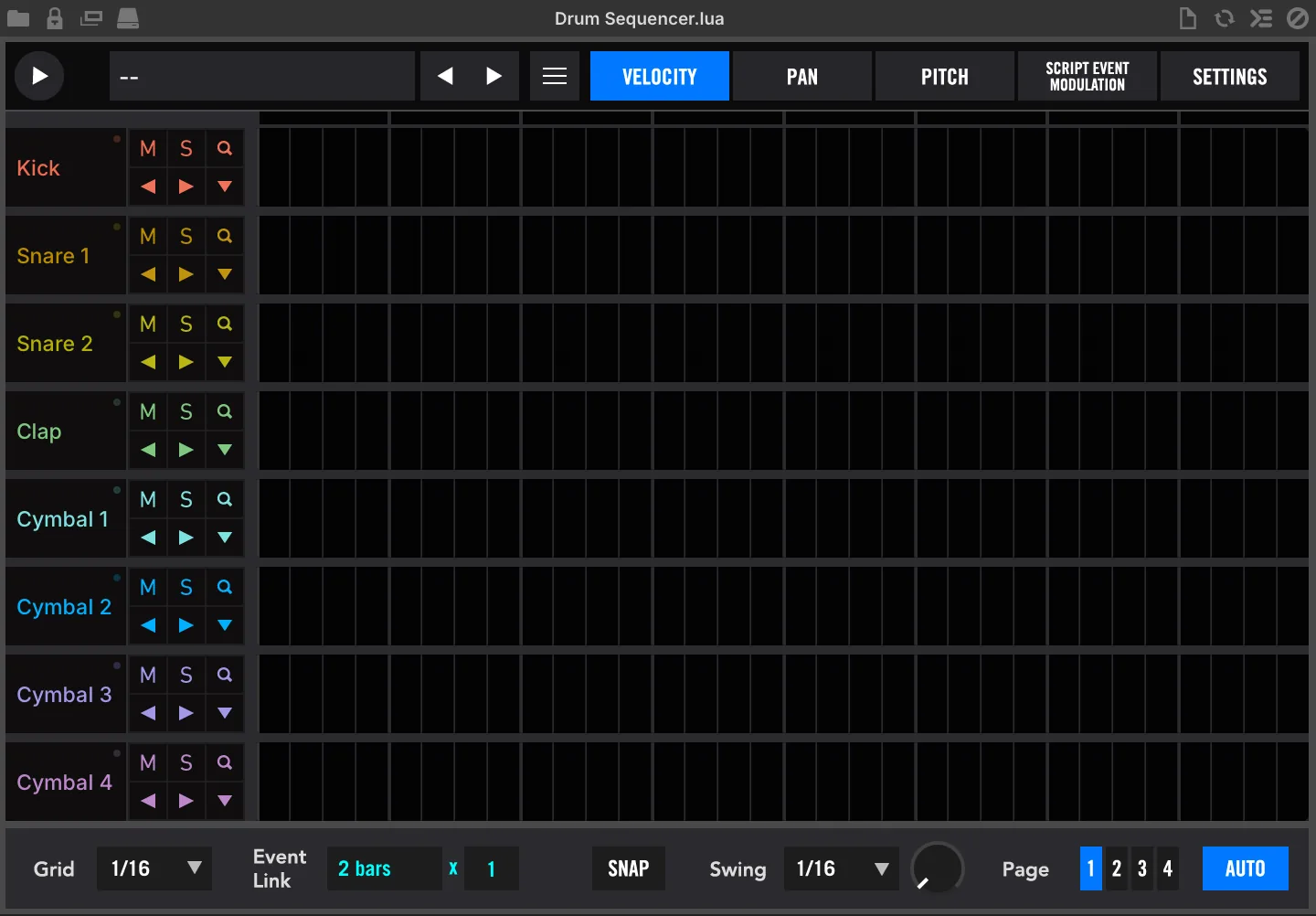
A full-featured 8-part, 8-bar X0X-style sequencer with velocity, pan, pitch, swing, external modulation control, preset load/save capability and more.
PLAY (top-left) plays or stops the sequence.
PATTERN PRESET contains a wide range of rhythmical patterns arranged by style and tempo.
≡ menu
CLEAR, resets the current configuration.
LOAD, loads a preset.
SAVE, saves the current sequence.
SAVE AS…, saves the current sequence as a new named preset.
SAVE ALL AS…, saves the current sequence and settings as a new named preset.
STATE A/B, switches between A/B states of the sequencer.
COPY A TO B/B TO A, copies the current sequencer state to the alternate slot.
COPY SEQUENCE PAGE, copies the current sequencer page (1–4) to the clipboard.
PASTE SEQUENCE PAGE, overwrites the visible/selected sequencer page from the clipboard.
LOCK MIDI MAP, locks the current parameter values on the Settings page (preserve key bindings while changing preset).
LOCK MUTES AND SOLOS, locks the current part mute and solo settings (preserve mix settings while changing preset).
Part controls are available in the left-most column, including: NAME and MIDI STATUS (●), MUTE (M), SOLO (S) and TRACK ZOOM (Q), SEQUENCE NUDGE LEFT / RIGHT (◀/▶) and FUNCTIONS (▼).
The main area of the interface is the GRID EDITOR, draw in values or double-click to input numerical values, right-click the grid and choose RESET ALL VALUES to clear it. At the top of the Grid Editor is a BEAT INDICATOR LED that lights up over the current beat.
Bottom Toolbar GRID sets the sequencer grid resolution.
EVENT LINK sets the interval of linked edits, with a setting of ‘1 bar’ every edit you make will be repeated in 1 bar intervals. SNAP enables grid snapping.
SWING DIVISION sets the swing interval. SWING knob sets the amount of swing. PAGE 1-4 changes the current sequence page — each page holds two of the eight bars (page 1 = bars 1–2, page 2 = bars 3–4, page 3 = bars 5–6, page 4 = bars 7–8). AUTO changes the visible sequencer page with the playhead.
Settings
Assignments and Naming PART NAMES double-click a part name to rename it ←COPY NAMES will name the parts according to the instrument names in the PART NOTE menu REFRESH to refresh the PART NOTE menu.
PART NOTE MENU set which incoming MIDI note will trigger the part.
Instrument Settings TIME is a bipolar trigger offset in ms (+/-200). GAIN adjusts the instrument Gain PAN adjusts the instrument Pan TUNE adjusts the instrument’s pitch.
Bottom Toolbar GENERATE MIDI creates a MIDI file from the current sequence, which can then be drag-and-dropped anywhere in your system or DAW via the DRAG ’N DROP button.
SEQUENCE TARGET NOTE select a note to use to gate playback of the sequence (use multiple Drum Sequencers with different target notes to create macro performances).
SLICE, when enabled, splits the sequence into its 8 bars and assigns their gated playback to eight chromatic notes starting at the Sequence Target Note, so each note starts playback from a different bar (perform the sequence like a chopped sample).
GLOBAL GAIN (−60–30 dB), PAN (±100 %) and TUNE (±36 st) offset the per-part values.
Euclidean Drum Sequencer
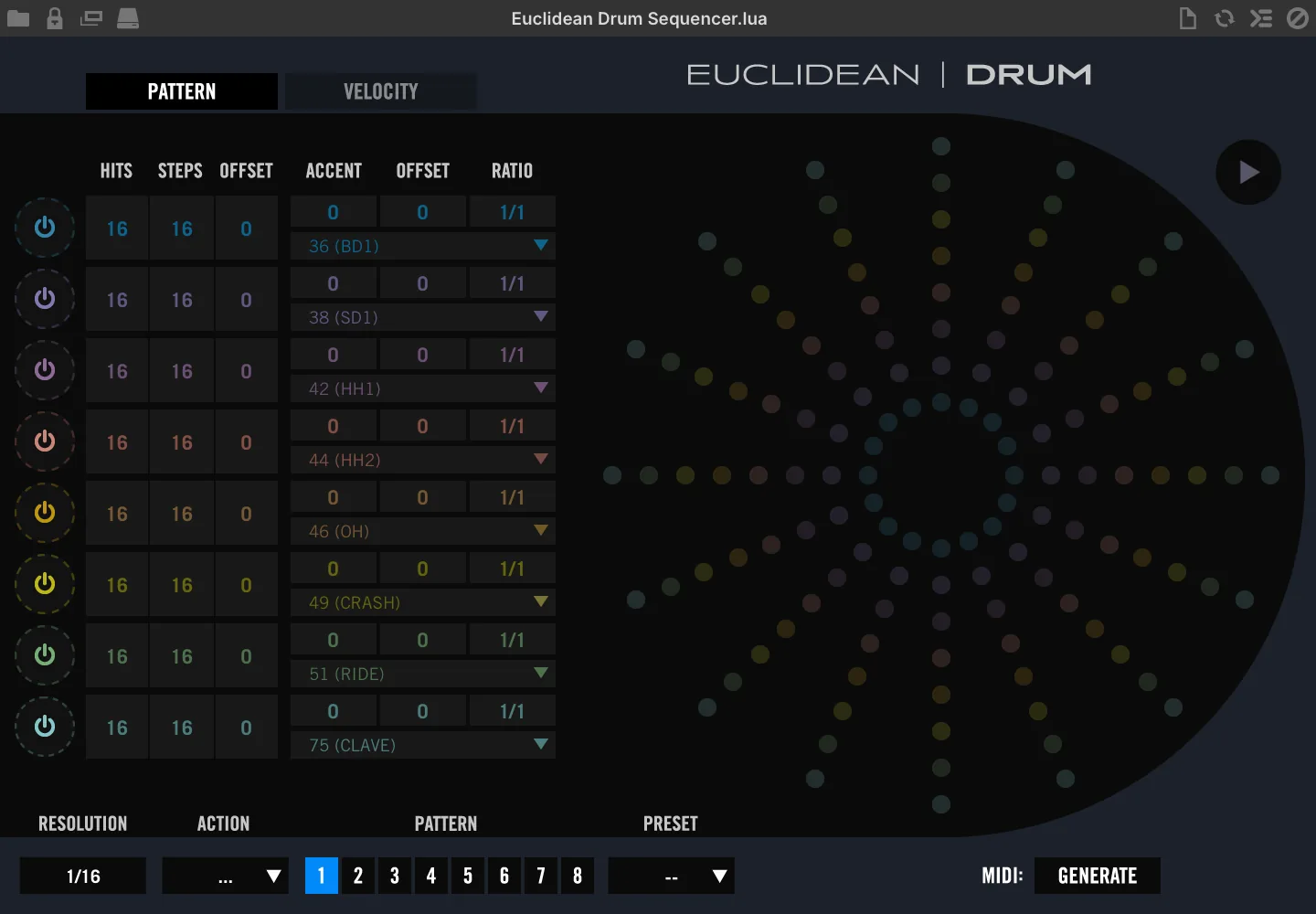
8-part sequencer based on Euclidean distribution oriented towards drum instruments.
PLAY (top-right) plays or stops the sequence.
Pattern Page Part Controls POWER toggles the part sequence on/off. HITS sets the number of steps that will trigger. STEPS sets the number of steps in the sequence. OFFSET offsets the sequence by a number of steps. ACCENT sets the step interval of accented triggers. ACCENT OFFSET offsets the accented triggers by a number of steps.
RATIO sets the part speed relative to the global resolution MIDI NOTE set MIDI note number that the part will trigger.
Euclidean Grid Displays the current sequencer state of all 8 parts. Active parts are indicated with a connecting circle; of those, dimmed and outlined nodes are not triggered, solid-filled nodes are triggered, solid-filled nodes with a white highlight are accented.
Velocity Page VELOCITY sets the MIDI note velocity per-part. ACCENT VELOCITY sets the MIDI note velocity of accented triggers per-part.
Bottom Toolbar RESOLUTION sets the global sequence speed. ACTION MENU allows you to copy and paste the current sequence using the 8 available pattern slots. PATTERN 1-8 changes the current configuration between 1 of 8 available pattern slots.
PRESET load a preset sequence into the currently selected pattern slot.
MIDI GENERATE creates a MIDI file of the visible sequence; the DRAG ’N DROP button then appears beside it, and from there the file can be dragged anywhere in your system or DAW. The button is hidden again as soon as the pattern is edited, so generate the file again after any change.
Euclidean Keys Sequencer
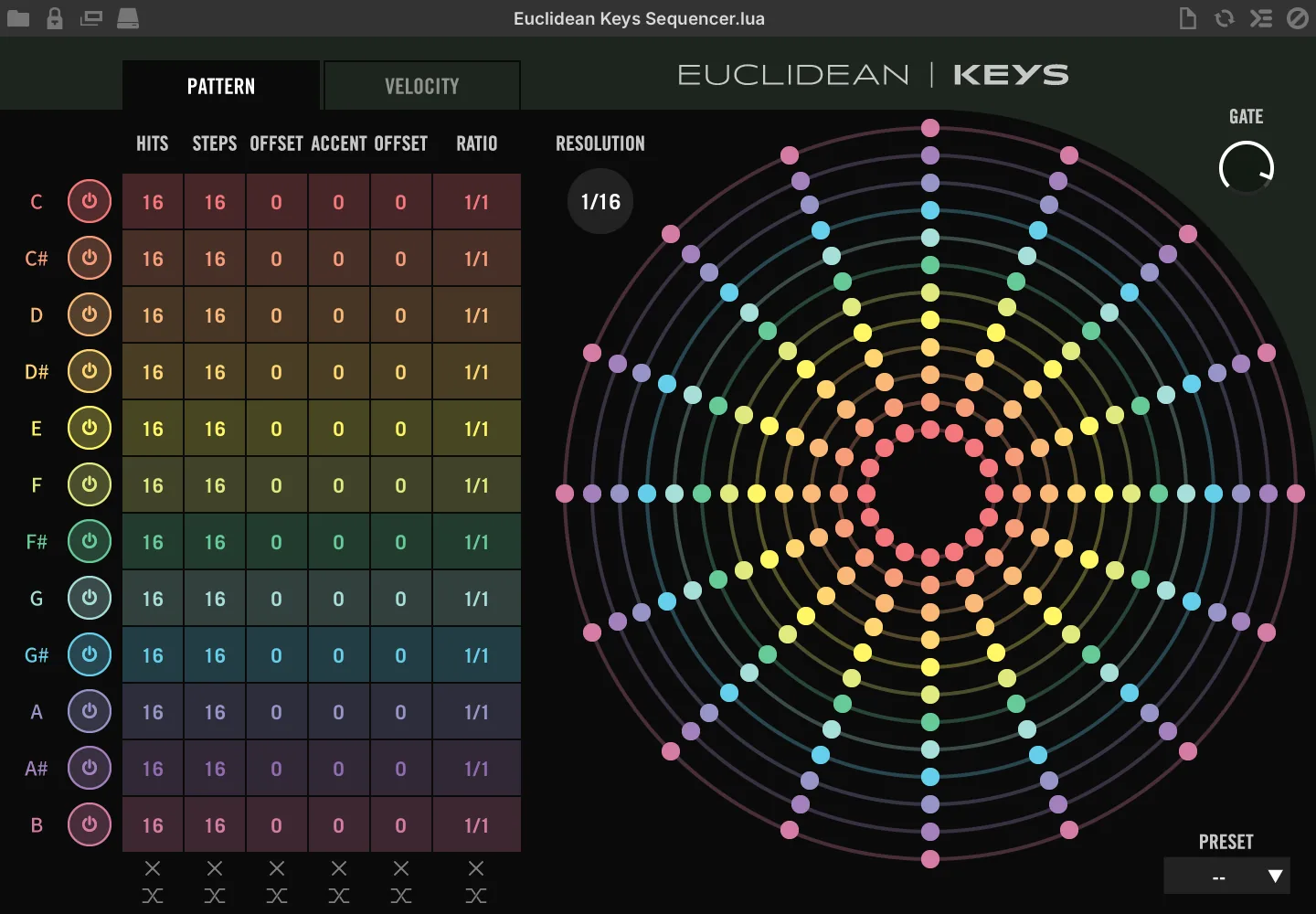
Generate discrete euclidean-based sequences for each key in the chromatic scale.
Pattern Page Note Controls POWER toggles the note’s sequence on/off. HITS sets the number of steps that will trigger. STEPS sets the number of steps in the sequence. OFFSET offsets the sequence by a number of steps. ACCENT sets the step interval of accented triggers. ACCENT OFFSET offsets the accented triggers by a number of steps.
Velocity Page VELOCITY sets the MIDI note velocity per note. ACCENT VELOCITY sets the MIDI note velocity of accented triggers per note.
GATE sets the global note gate length PRESET useful premade sequences (overwrites current sequencer configuration).
RATIO sets the note speed relative to the global resolution INIT click X switch at the bottom of each control to clear the settings.
RANDOMIZE click the switch at the bottom of each control to randomize the setting.
RESOLUTION sets the global resolution (sequence speed).
Euclidean Grid Displays the current sequencer state of all 12 notes — one ring per note of the chromatic scale, keyed by pitch class regardless of octave. Active notes are indicated with a connecting circle; of those, dimmed and outlined nodes are not triggered, solid-filled nodes are triggered, solid-filled nodes with a white highlight are accented.
Euclidean Tonal Sequencer
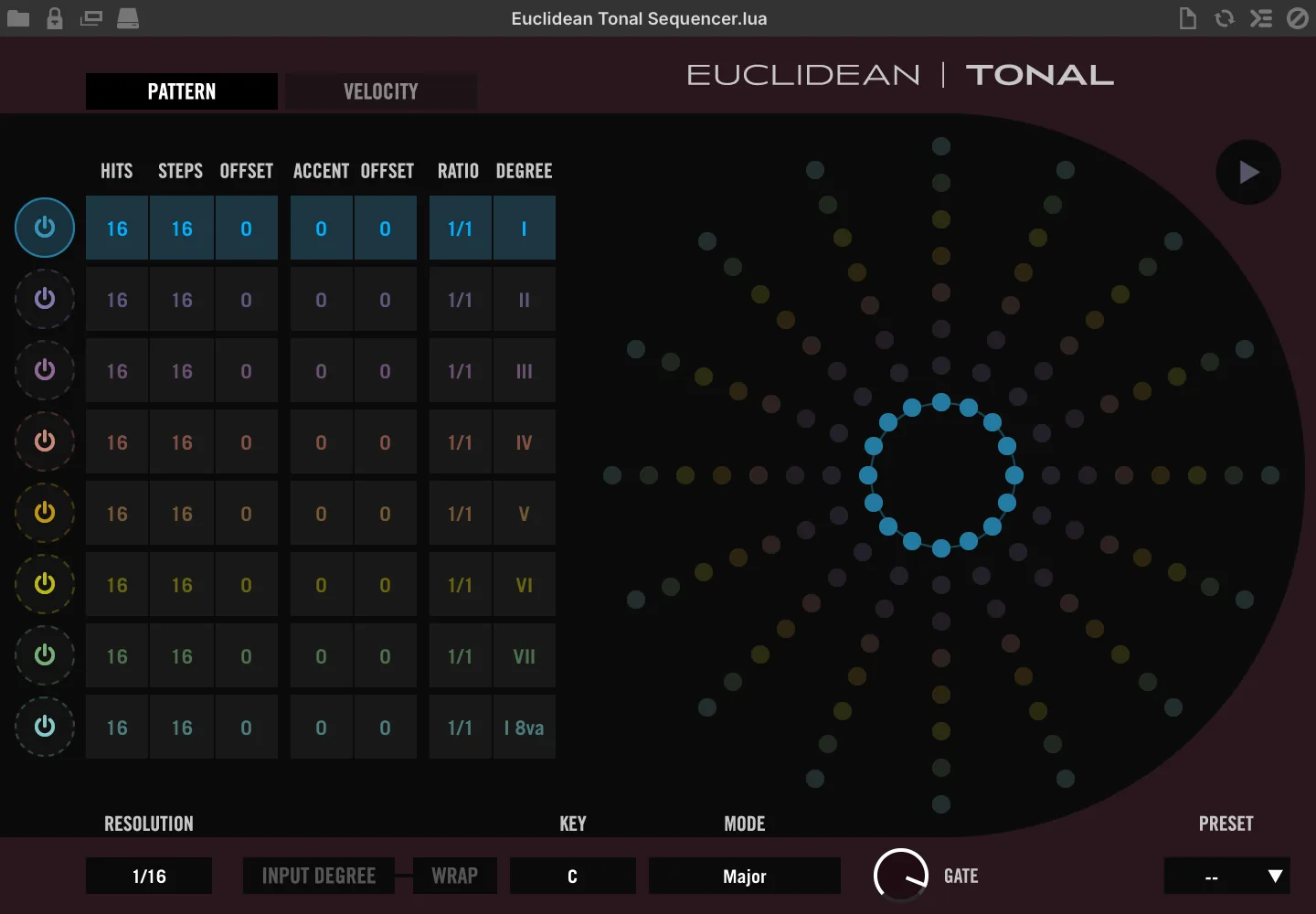
8-part sequencer based on euclidean distribution oriented towards tonal instruments.
PLAY (passive) will highlight when the sequencer is active.
Pattern Page Part Controls POWER toggles the part sequence on/off. HITS sets the number of steps that will trigger. STEPS sets the number of steps in the sequence. OFFSET offsets the sequence by a number of steps. ACCENT sets the step interval of accented triggers. ACCENT OFFSET offsets the accented triggers by a number of steps.
RATIO sets the part speed relative to the global resolution. DEGREE sets the degree relative to the master key and mode.
Velocity Page VELOCITY sets the MIDI note velocity per-part. ACCENT VELOCITY sets the MIDI note velocity of accented triggers per-part.
Bottom Toolbar RESOLUTION sets the global sequence speed INPUT DEGREE, when active, dynamically sets the sequence key to the lowest held note.
WARP while Input Degree is active, snaps pressed keys to tonal grid.
KEY sets the global key.
MODE sets the global scale.
GATE sets the global note gate length.
Euclidean Grid Displays the current sequencer state of all 8 parts. Active parts are indicated with a connecting circle; of those, dimmed and outlined nodes are not triggered, solid-filled nodes are triggered, solid-filled nodes with a white highlight are accented.
PRESET useful premade sequences (overwrites current sequencer configuration).
Gate Mod
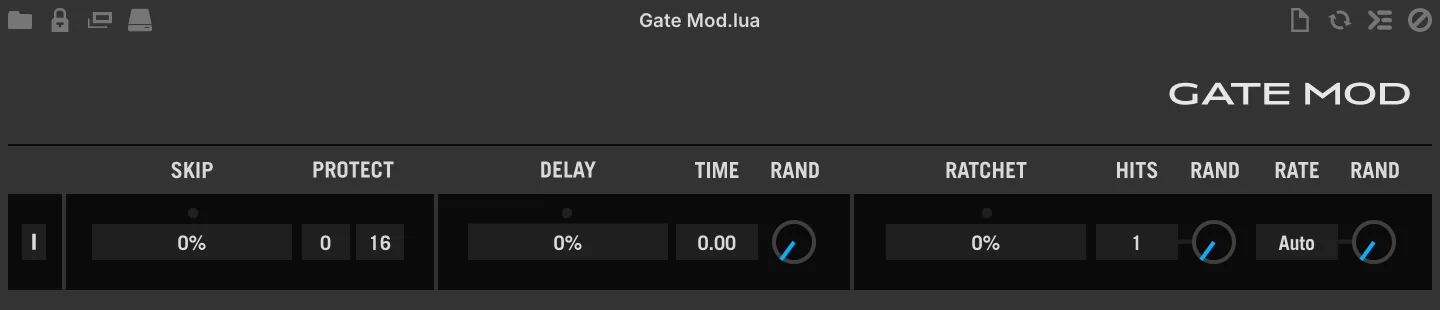
A probability-based multitool which can apply up to 3 functions per note event: Skip (mute), Delay (in ms), and Ratchet.
Gate Mod is a probability-based multitool including 3 processors: a skipper with beat protect, a delay, and a ratchetter. Processors are controlled by way of their probability sliders which are queried sequentially from left to right for every note received.
[I] click once to initialize the plug-in to the default state.
Probability Skipper
ACTIVITY LED a small circular indicator, lights up when the processor is triggered (and a note is skipped) SKIP PROBABILITY (0–100 %) sets the probability of skipping incoming note events.
PROTECT allows you to prevent notes from being skipped regardless of the probability value, based on their numerical order. This is useful for adding probability to sequences while protecting rhythmic patterns (like downbeats). For example, a setting of [1] / [4] will protect the first of every four notes, and a setting of [3] / [8] will protect the first three out of every eight notes received.
Probability Delay
ACTIVITY LED a small circular indicator, lights up when the processor is triggered (and a note is delayed) DELAY PROBABILITY (0–100 %) sets the probability of delaying incoming note events.
TIME sets the delay time in ms (0–1000) RAND randomizes [Time], 0= bypass, >0= randomized, greater values = longer potential time values (up to max).
Probability Ratchetter
ACTIVITY LED a small circular indicator, lights up when the processor is triggered (and a note is ratcheted) RATCHET PROBABILITY (0–100 %) sets the probability of ratcheting incoming note events.
HITS (1–8) sets the number of times the note repeats; its RAND (0–100 %) adds a random number of extra hits, up to 8. RATE sets the repeat length, Auto or 1/2 to 1/32 including dotted and triplet values; Auto divides a 1/16 note by the number of hits. Its RAND (0–100 %) randomly shortens the rate, down to 1/32 at most.
Gate Mod Bernoulli
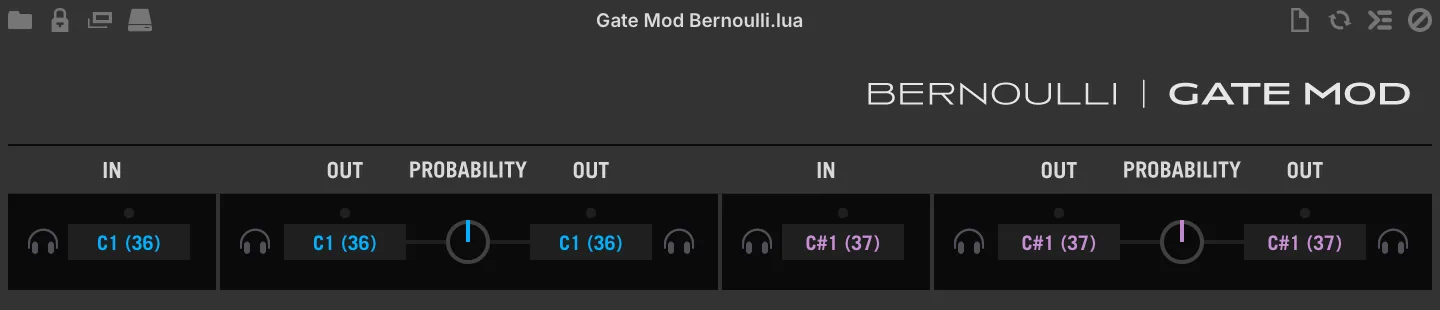
A 2-channel probability-based note router, with note learn.
A note-focused Bernoulli gate. Assign one source note (IN) and two destinations (OUT), then control the likelihood of which destination gets triggered with the probability knob. Useful for creative applications and variable drum patterns. Includes two discrete channels (blue and purple) with identical functionality.
IN
[ NOTE LEARN] click to activate Note Learn mode, the channel will bind to the next MIDI note received.
ACTIVITY LED a small circular indicator, lights up when the assigned note is detected.
[NOTE IN] click-drag to change the note IN assignment of the channel, double-click for numeric entry.
OUT
[ NOTE LEARN A/B] click to activate Note Learn mode, the channel will bind to the next MIDI note received.
ACTIVITY LED A/B a small circular indicator, lights up when the assigned note is triggered.
A/B PROBABILITY sets the probability of IN notes going to OUT A or OUT B, where value 0%= all note INs go to Out A, and 100%= all note INs go to Out B.
Gate Mod Poly
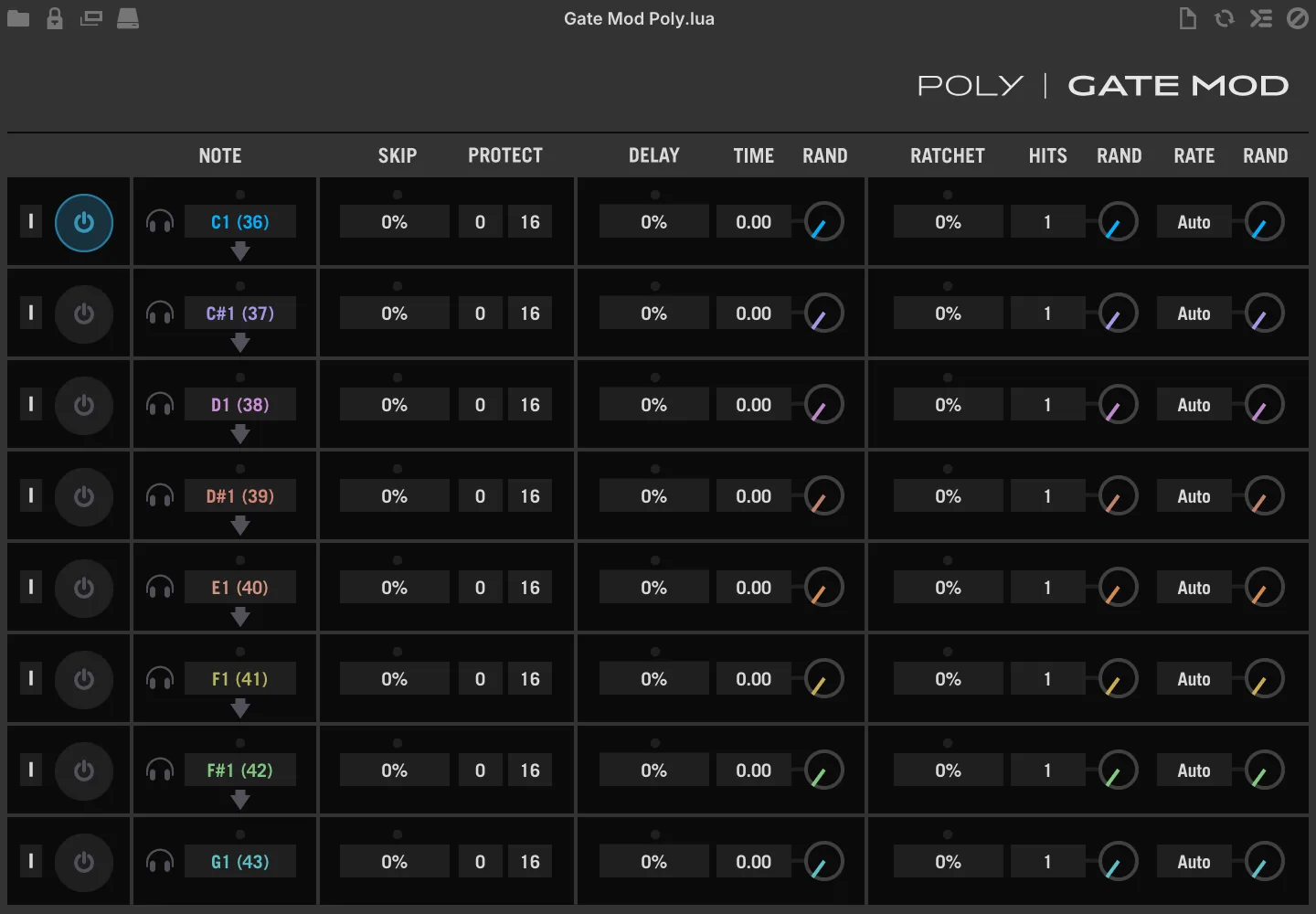
An 8-channel, note-specific variant of the Gate Mod script processor.
Gate Mod Poly is an 8-channel variant of Gate Mod, with per-channel bypass, note learn, and auto-assign. It’s an ideal pairing for the Drum Sequencer or Euclidean Drum Sequencer scripts, or in any situation where you need note-specific control of Gate Mod to add non-repeating variability and interest to a sequence.
The following section deals only with the unique controls of the poly version, for use of Gate Mod processors see: Event Processors › Script Processor › Gate Mod.
[ ↓ AUTO ASSIGN] assigns notes to all following channels, sequentially from the current note up, for example clicking [Auto Assign] on channel 1 with an assignment of C3 will set the remaining channels to C#3, D3, D#3, E3, F3, F#3, and G3. Combine with [Note Learn] for setup in 3 clicks.
[ POWER] click to enable/disable the channel.
[ NOTE LEARN] click to activate Note Learn mode, the channel will bind to the next MIDI note received.
[NOTE] click-drag to change the note assignment of the channel, double-click for numeric entry.
MIDI CC LFO
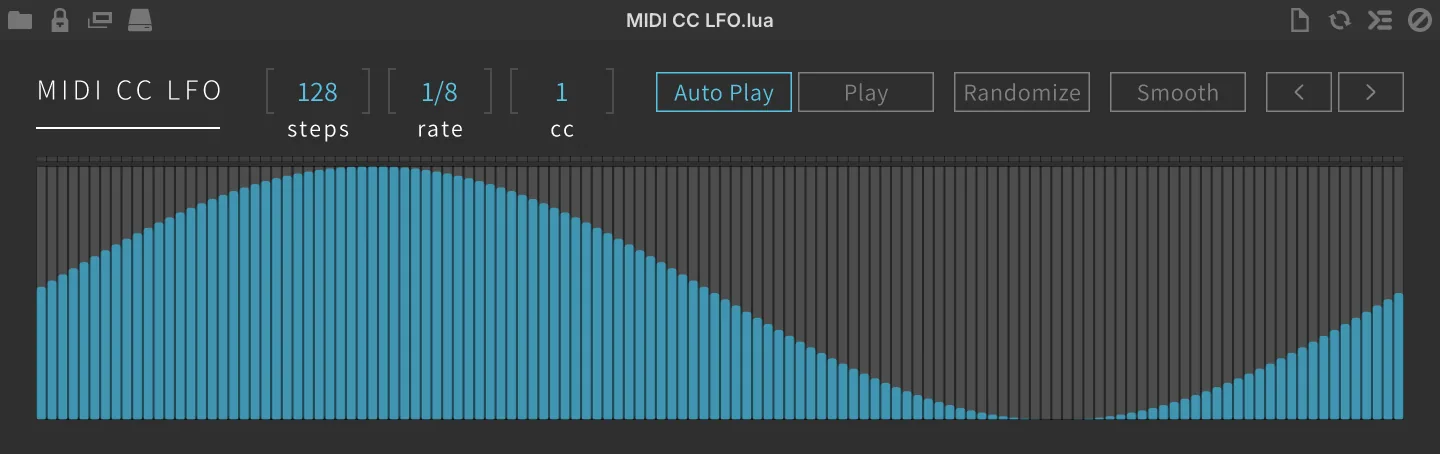
A multi-step MIDI CC modulator.
STEPS sets the number of steps to be played.
RATE sets the step length.
MIDI CC sets the target MIDI CC number.
AUTO PLAY enables retrigger mode.
PLAY enables free running mode.
SEQUENCER click to change values, double-click for numerical entry, or click-drag across the sequencer to draw custom modulation shapes.
RANDOMIZE sets every step to a random value.
SMOOTH click to apply a slight smoothing to the shape after hand-drawing.
The < and > buttons rotate all step values one step to the left or right, wrapping around the end of the sequence.
Motion Grid
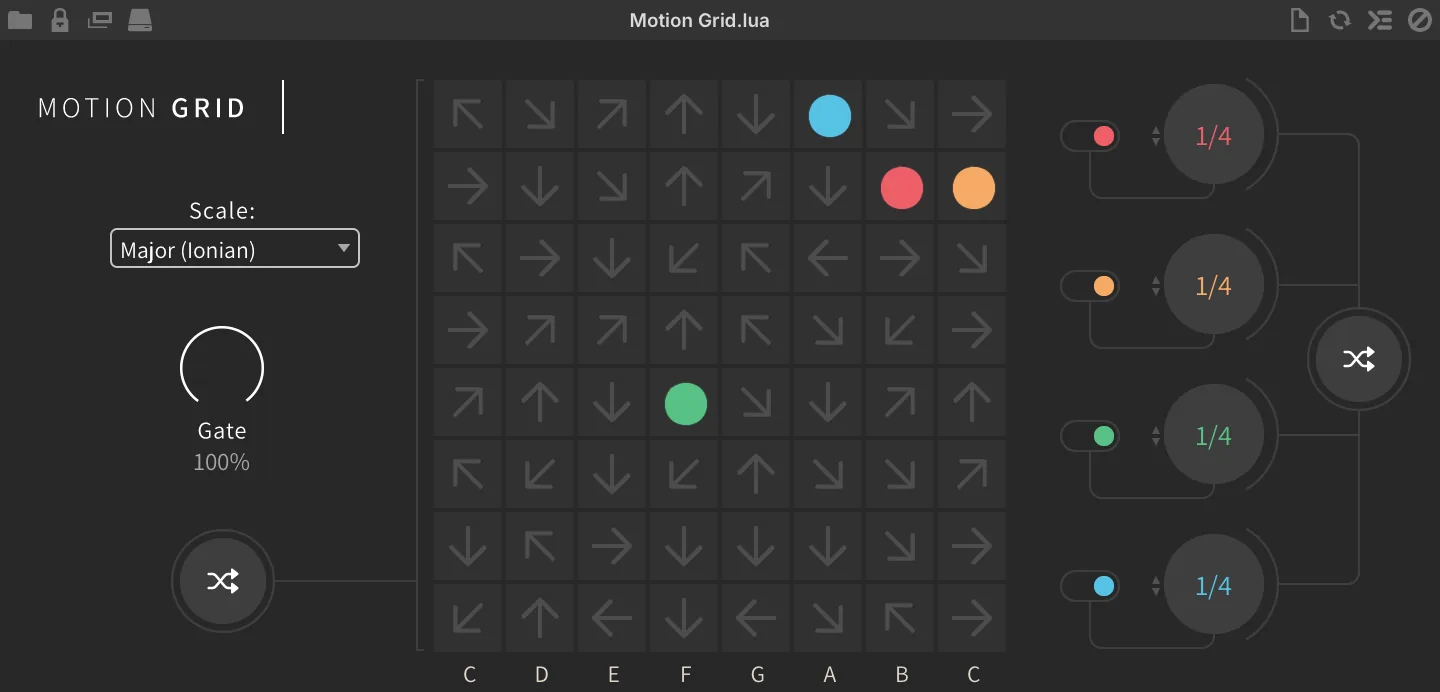
A logic-based grid sequencer driven by directional nodes.
SCALE sets the scale of the arpeggiation. GATE sets the gate amount (limitation of the note length). Click the RANDOM button to randomize grid node direction and start points.
Click the corner or side of each grid to set the moving DIRECTION.
Settings for each voice: ON/OFF switches voices on or off. RATE sets the speed of the voice movement. Click the RANDOM button to randomize the voice speed.
Node Arp
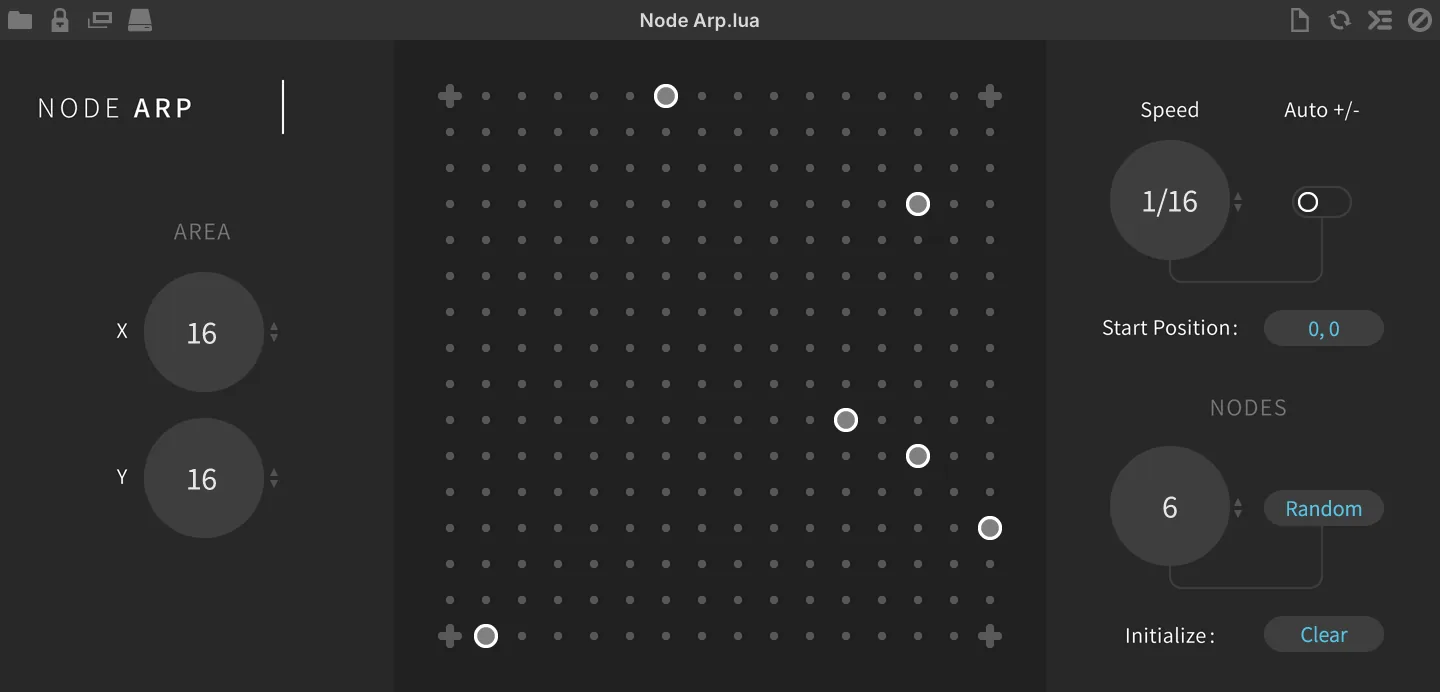
A logic-based grid sequencer driven by active/passive nodes.
AREA sets the matrix size, X and Y individually.
Click dots in the matrix to ADD or REMOVE the NODES manually.
SPEED sets the speed of the playheads, from 1/1 down to 1/32. RDM SPEED lets the read head halve, double or keep its speed each time it crosses a node.
The start-position button toggles between SAME, where every playhead starts from the node closest to the top-left corner of the matrix, and RANDOM, which picks a start node at random.
NODES sets the number of nodes by random generation. Click the RANDOM button to randomly generate nodes. Click the CLEAR button to remove all nodes from the matrix.
Ostinato Arp
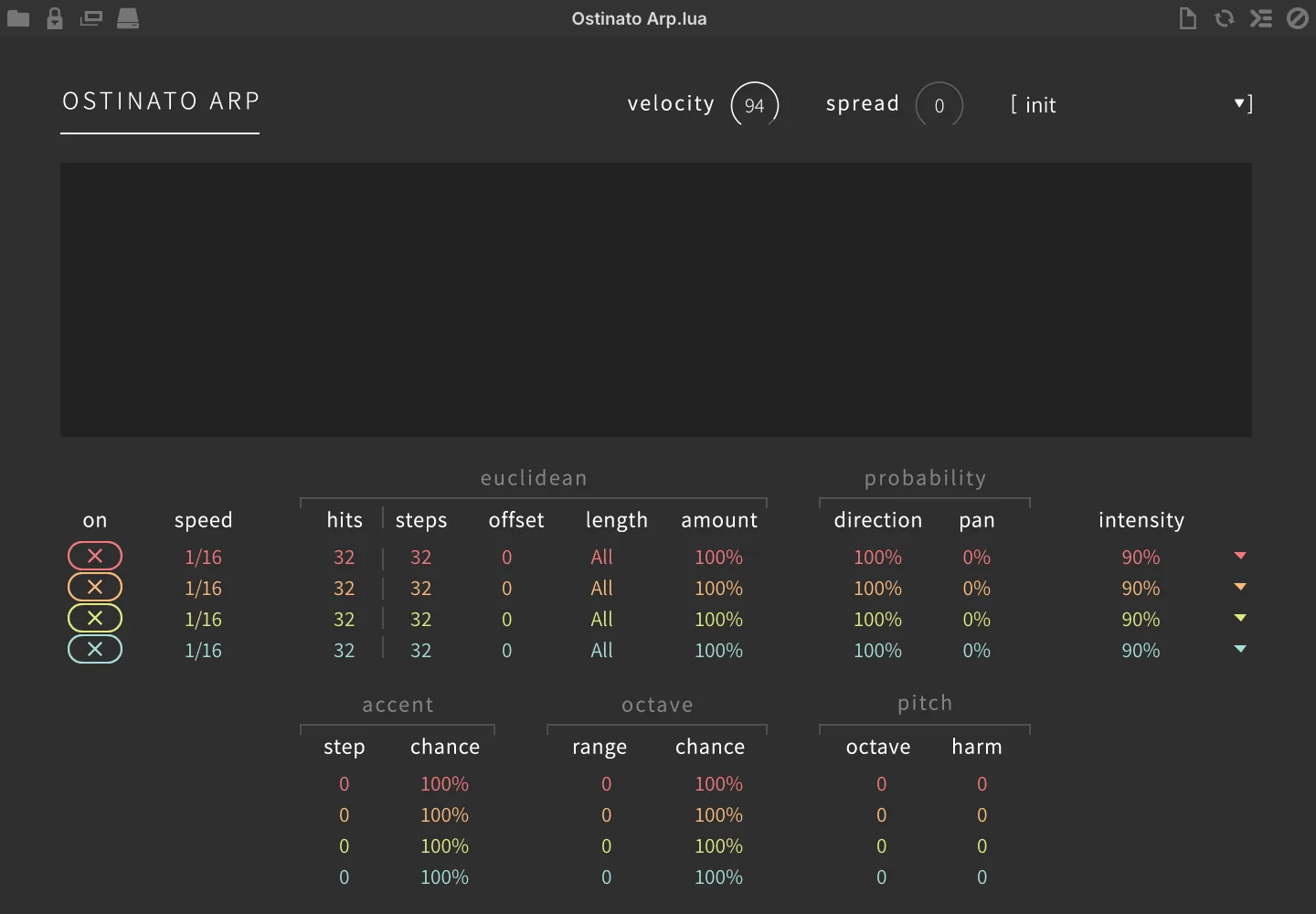
Four arpeggiators in parallel creating rhythmic and hypnotizing patterns.
Global Controls
VELOCITY sets the note velocity.
SPREAD sets the note spread.
[MENU] to choose the preset from the list.
Probability
DIRECTION sets the direction chance, -100% = down, 0% = up-down, 100% = up.
PAN sets the randomness of the pan position.
Accent
STEP sets the accent step. CHANCE sets the amount of the accent pattern probability.
Per Arpeggiator Controls
ON sets the arpeggiator enable (x) or disable (+).
SPEED sets the rate of the arpeggiator.
Euclidean
HITS sets the number of steps that will trigger. STEPS sets the number of steps in the sequence. OFFSET offsets the sequence by a number of steps. LENGTH sets the pattern length from 1 to 16 or all notes. AMOUNT sets the amount of the euclidean pattern probability.
Octave
RANGE sets the octave range of the arpeggio pattern. CHANCE sets the amount of the octave range shift probability.
Pitch
OCTAVE shifts the octave up to +/- 2 octaves. HARM sets the amount of the harmonization.
INTENSITY sets the note intensity of the arpeggio.
Each arpeggiator’s ▼ menu holds three commands:
-
INIT: reset that arpeggiator’s settings to their defaults.
-
COPY: copy that arpeggiator’s settings.
-
PASTE: paste the copied settings into that arpeggiator.
Polyphonic Sequencer
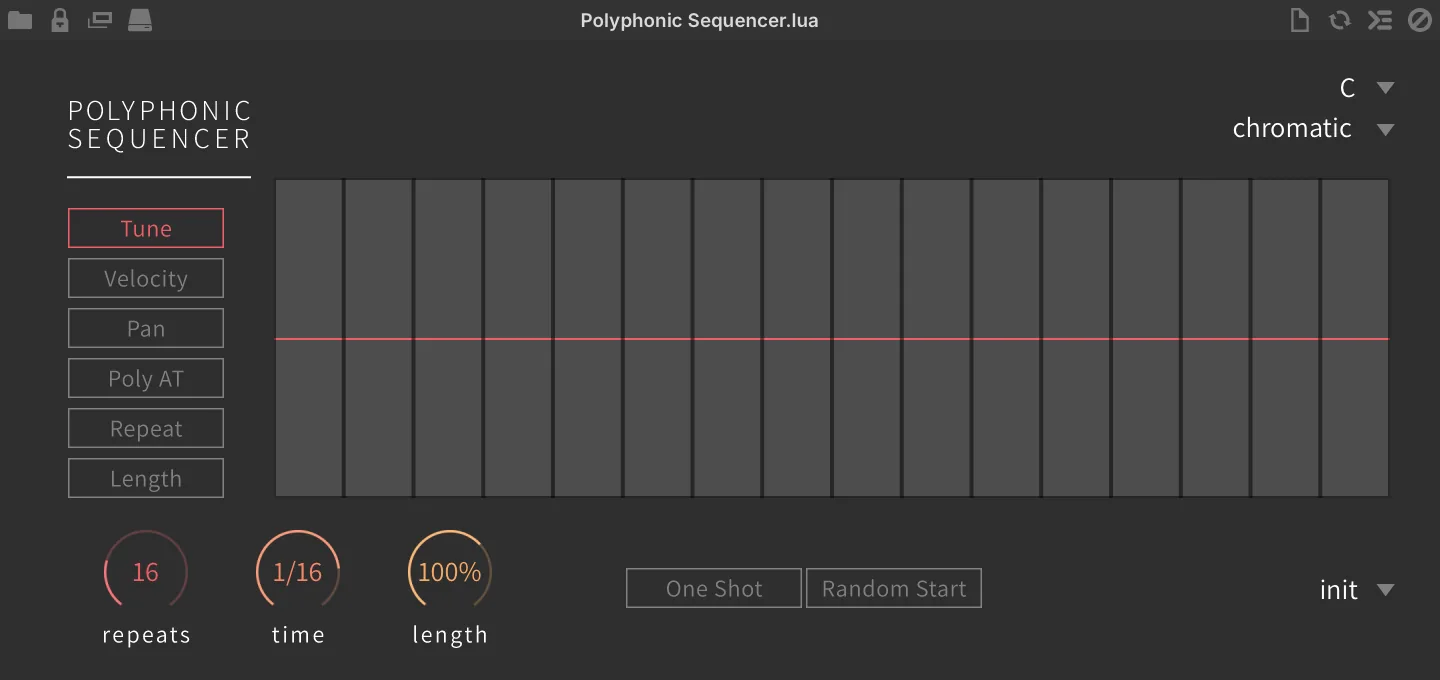
Polyphonic sequencer with one sequencer running per key pressed with volume, pan, pitch and timing support.
SCALE ROOT sets the root key of the sequence. SCALE sets the scale of the sequence phrase.
REPEATS sets the number of steps to be played (1–64).
TIME sets the step length, from 4 bars to 1/32 note.
LENGTH (0–150 %) scales the note length of every step.
Sequencer Pages TUNE sets the pitch offset in semitones (+/-24). VELOCITY sets the note velocity multiplier (0–200 %). PAN sets the absolute pan value (L/R).
POLY AFTERTOUCH sets the aftertouch volume amount (0–127). REPEAT sets the note repeat amount (1–8). LENGTH sets the note gate length (0–100 %).
PRESET a selection of useful sequencer presets.
ONE SHOT disables looped sequence playback.
RANDOM START enables random start position of the sequence.
Probability Arp
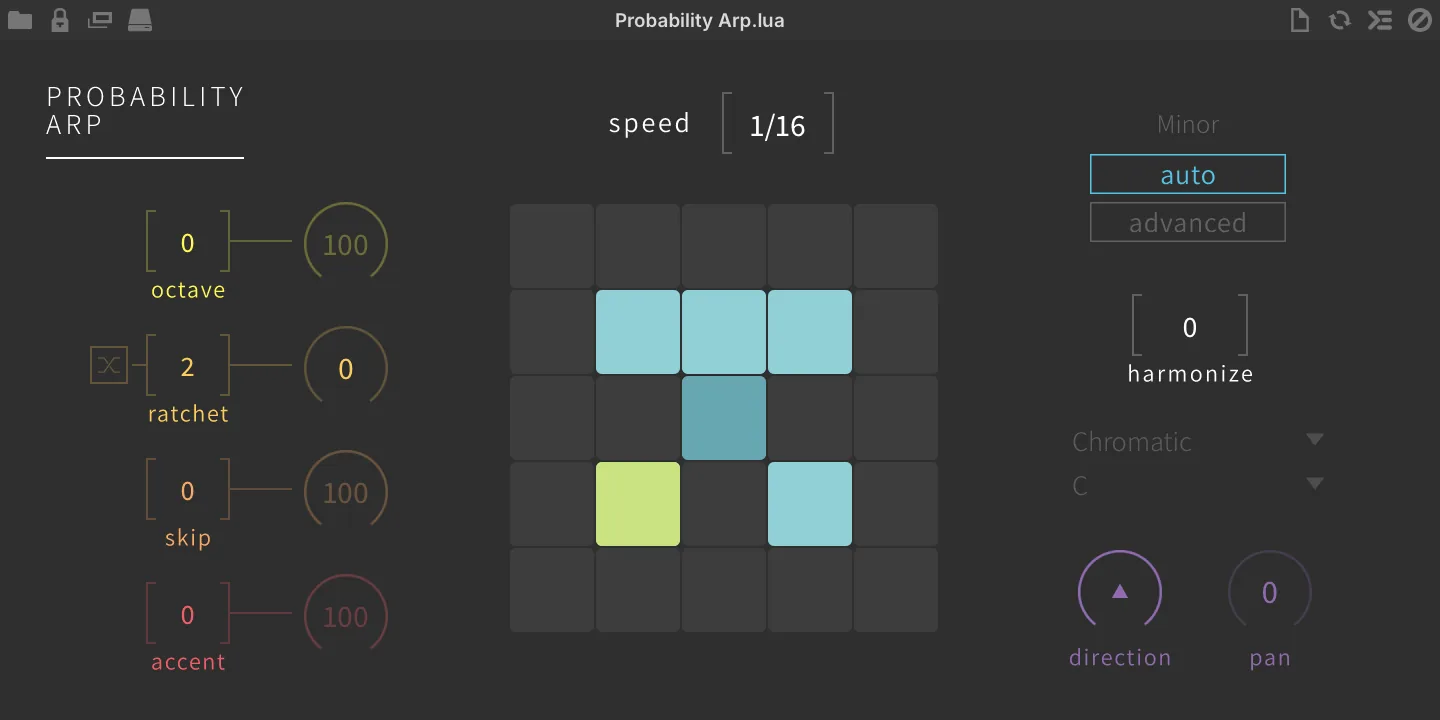
Arp with chance-based octave, ratchet, skip, accent, direction, pan, and harmonization.
SPEED sets the sequence speed.
Left Controls
OCTAVE sets the octave range with probability amount. RATCHET sets the count of ratcheting incoming note events, randomize with probability amount.
SKIP sets the count of skipping incoming note events with probability amount.
ACCENT sets the accent count with probability amount.
Right Controls
AUTO / ADVANCED MODE switch between automatic chord/scale detection or advanced (manual) mode.
HARMONIZE sets the probability of the harmonization.
MODE sets the global scale. KEY sets the global key.
DIRECTION randomizes the arp direction. PAN randomizes the pan setting.
Rain Sequencer
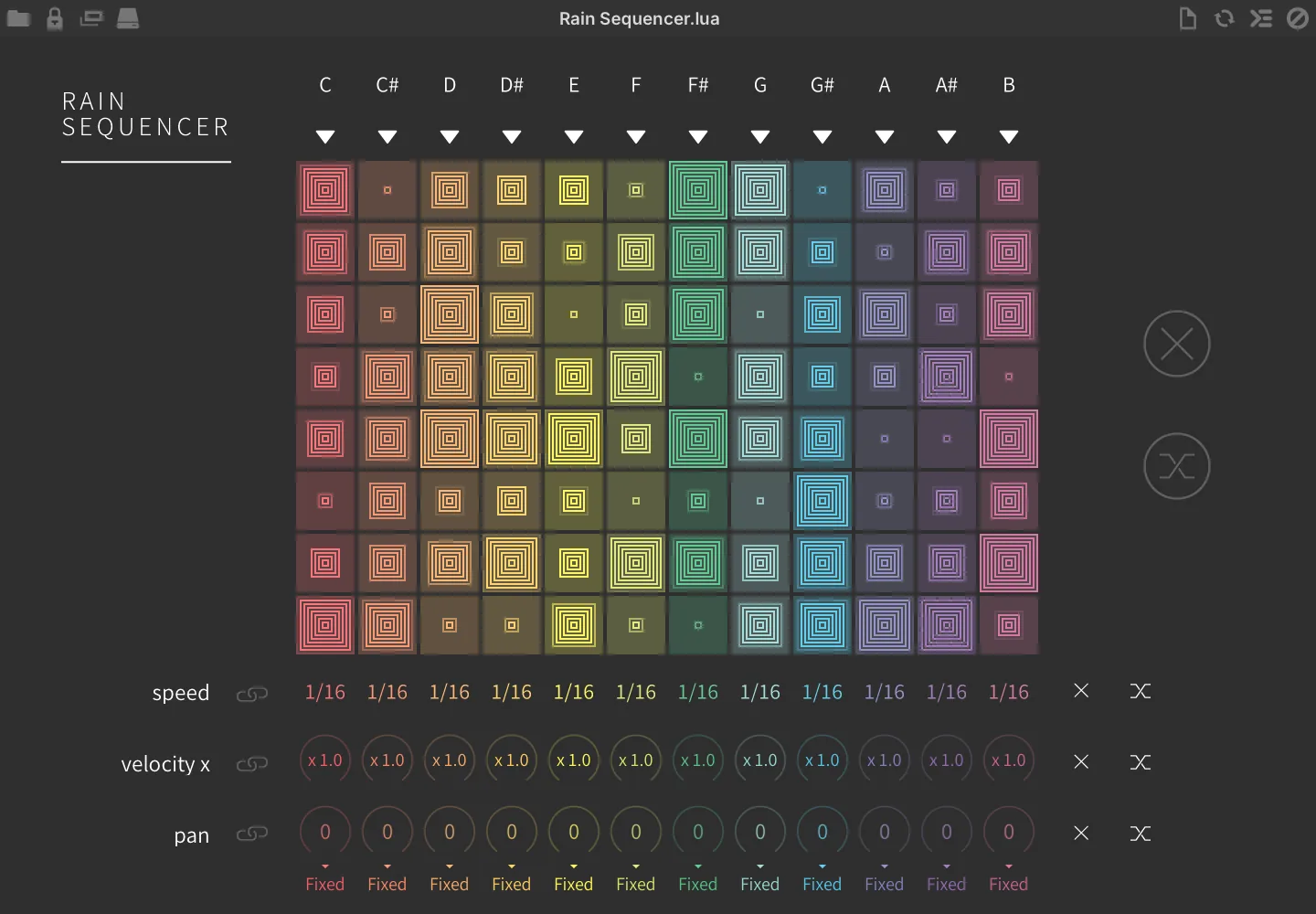
12 note-based vertical sequencers with discrete speed, velocity, and pan modifiers.
Each row carries a MENU ▼ with the following commands:
-
INIT initializes the values of the line.
-
CLEAR clears the values of the line.
-
RANDOMIZE randomizes the values of the line.
-
COPY TO copies the values of the row and pastes to the line of your choice.
-
TEMPLATES applies a template pattern to the line.
STEP EDITORS drag to set the velocity of the step INIT (X) initializes the values of all row steps. RANDOMIZE randomizes the values of all row steps.
SPEED sets the step speed per note. VELOCITY sets the step velocity multiply amount per note. PAN sets the MIDI panning mode per note.
-
FIXED outputs the fixed stereo position set by the note’s dial.
-
ALT alternates the pan left and right with each keypress; the dial sets the depth of the alternation.
-
RAND outputs a random pan position with each keypress; the dial sets the depth of the randomization.
-
NONE has no panning effect
LINK allows you to edit all rows simultaneously.
INIT (X) initializes the parameter values for all notes at once RANDOMIZE randomizes the parameter values for all notes at once.
Slice Remixer
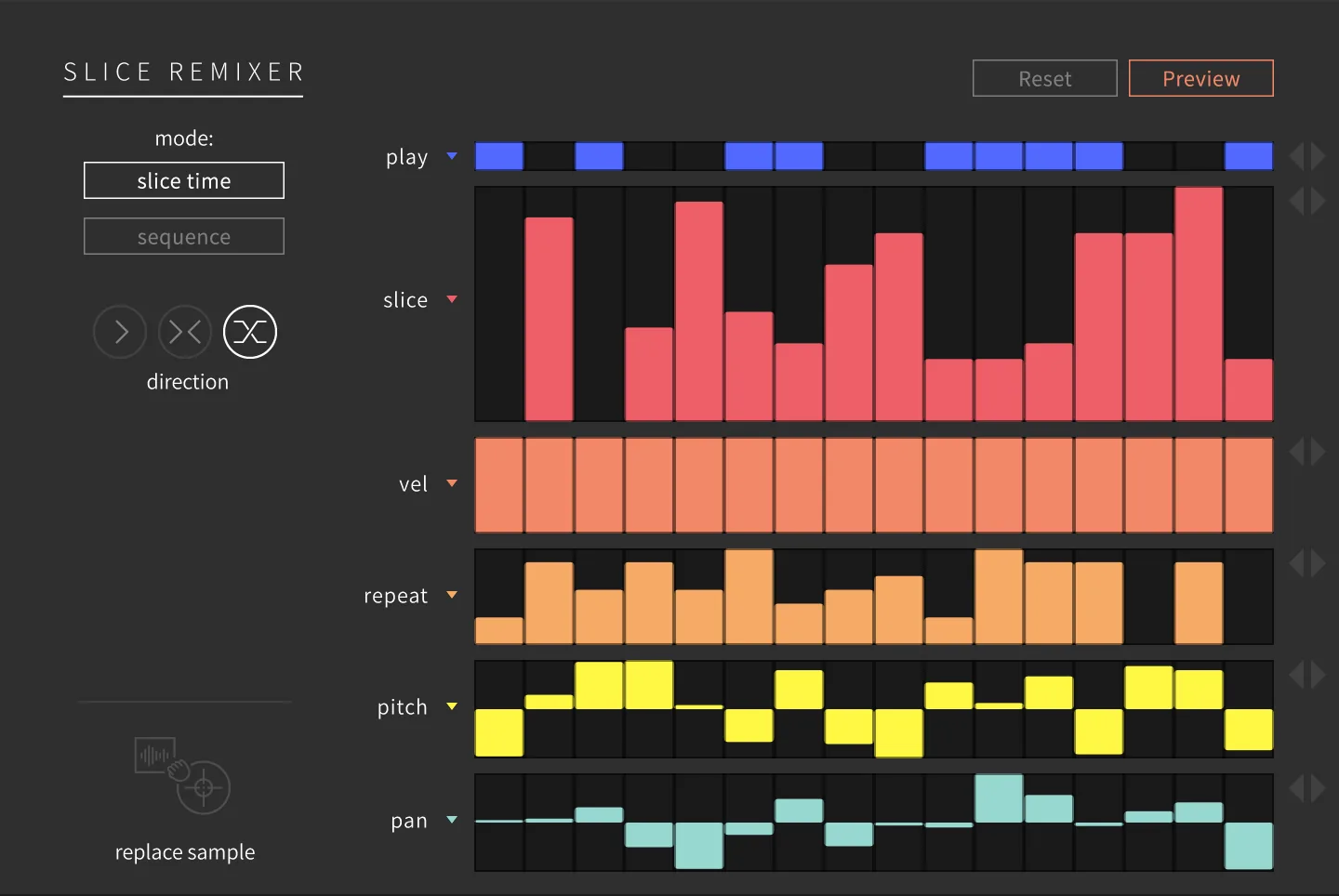
In conjunction with the Slice sample oscillator, quickly remix sliced loops to create new patterns.
The sample loads into the Slice oscillator, the slices will be added to the Slice Remixer and the keys will be mapped from C3/note#60 for each slice.
Use C2 / note#48 to trigger the Slice Remixer.
RESET click to reset the Slice oscillator. This is useful when replacing the sample in the oscillator.
VELOCITY sets the slice velocity. Click the ▼ button to initialize or randomize the steps, and use the ◀▶ buttons to shift the steps left or right.
PREVIEW enables preview when tweaking the Slice IDs.
MODE sets which slice timing mode to use, SLICE TIME uses slice timing from the sample, SEQUENCE uses fixed timing set by RATE and STEPS.
DIRECTION sets playback direction: FORWARD, PING PONG (alternate forward and backward) and RANDOM.
Drag sample to REPLACE SAMPLE icon to swap the sample for slicing.
PLAY sets the step to play or mute. Click the ▼ button to initialize or randomize the steps, and use the ◀▶ buttons to shift the steps left or right.
REPEAT sets the number of times the step should repeat. Click the ▼ button to initialize or randomize the steps, and use the ◀▶ buttons to shift the steps left or right.
PITCH sets the per-step semitone offset (−24 to 24). Click the ▼ button to initialize or randomize the steps, and use the ◀▶ buttons to shift the steps left or right.
PAN sets the per-step MIDI panning. Click the ▼ button to initialize or randomize the steps, and use the ◀▶ buttons to shift the steps left or right.
SLICE ID sets the slice to use for the steps. Click the ▼ button to initialize or randomize the steps, and use the ◀▶ buttons to shift the steps left or right.
Snowflakes
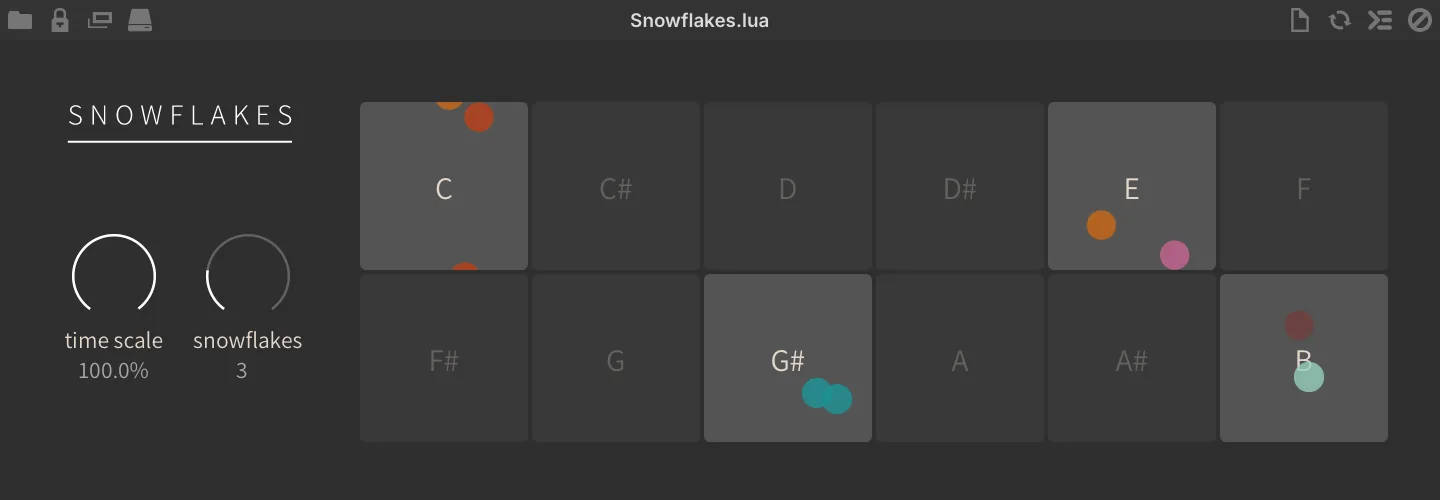
A 12-note based sequence modifier turning sustained notes into fluttery staccato.
TIME SCALE sets the speed of event generation (particles falling).
SNOWFLAKES sets the number of particles in each note display (note generation).
Step Arp
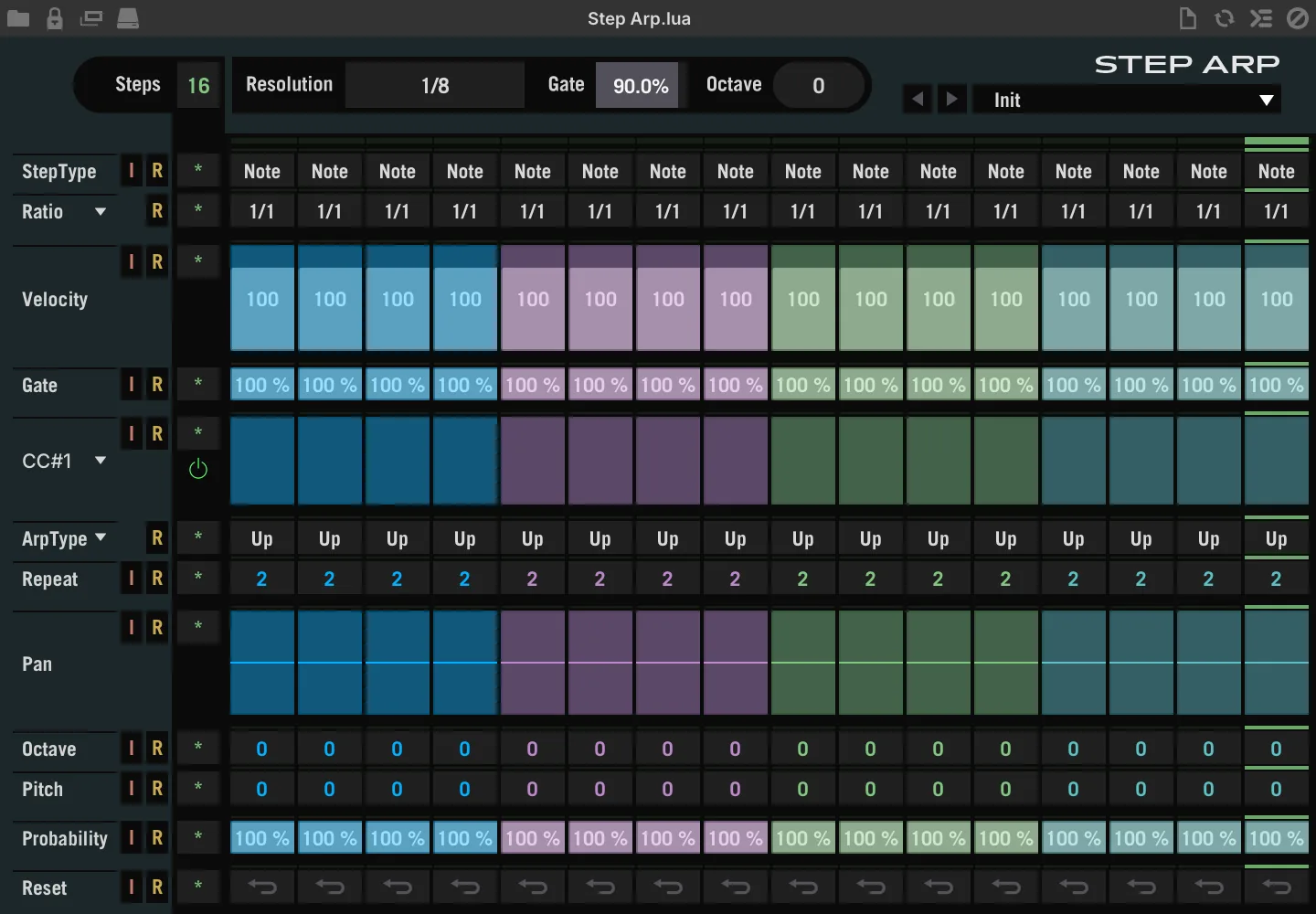
A full-featured step-based arpeggiator with type, ratio, velocity, gate, MIDI CC, mode, repeat, pan, octave, pitch and probability per-step, with independent length control for each channel.
STEPS sets the number of steps for the sequence. RESOLUTION sets the step length (1/32 to 1/2 note, including dotted and triplet values) based on the BPM of the host.
GATE sets the gate amount (1–100 %).
OCTAVE sets the octave range of the sequence (−3 to +3) PRESET select a factory preset configuration PRESET ▶ select the next preset PRESET ◀ select the previous preset.
Step Parameters
GLOBALS (CHANNEL HEADERS)
[I] initialize the values of the row.
[R] randomize the values of the row [-] sets the step length of the row independently from the main step length, allowing for varied and polyrhythmic sequences.
VELOCITY sets the per-step velocity amount (1–127). GATE sets the per-step gate amount (1–100 %).
MIDI CC selects which controller (CC 1–4) the row edits by clicking in the header row, then sets the modulation value per-step (0–127). ARP TYPE sets the arpeggiator sequence shape. REPEAT sets the number of times the step should repeat (2–8). PAN sets the per-step MIDI panning.
OCTAVE sets the per-step octave (−2 to 2) relative to the global octave setting.
PITCH sets the per-step semitone offset (−24 to 24). PROBABILITY sets the per-step probability amount (0–100 %) RESET toggle on to activate, when a RESET step is played the ARP TYPE sequence resets to the first note.
STEP TYPE sets the step function: Empty= does nothing, Note= plays a note, Repeat= repeats the last note, Glide= sustains the last note. RATIO sets step length relative to the main resolution, clicking in the channel header allows you to set all steps at once.
Step Line
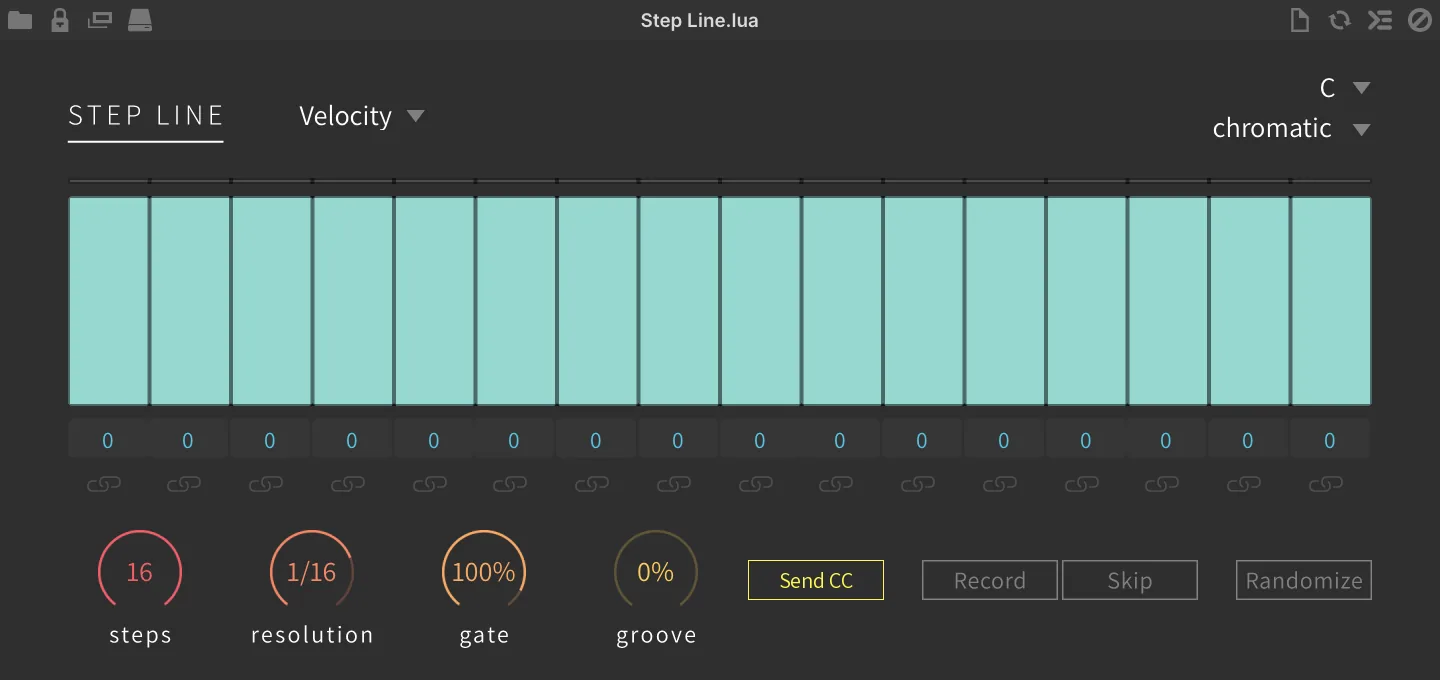
Sequencer Pages Step Line
VELOCITY sets the per-step velocity level. PITCH sets the per-step pitch offset (+/-48 semitones). LENGTH sets the per-step gate amount. CC1/2 sets the per-step modulation level to send on CC1/2.
The ▼ menu beside the module name chooses which page the grid edits: VELOCITY, PITCH, LENGTH, CC 1, or CC 2.
STEPS sets the number of steps to be played (1–16). RESOLUTION sets the step length (1/32 to 1/2 note, including dotted and triplet values). GATE sets the gate amount (0–110 %). GROOVE sets the groove amount (0–50 %).
Bassline-oriented sequencer.
SCALE ROOT sets the root key of the sequence. SCALE sets the scale of the sequence phrase.
RECORD switch enables phrase record mode - use to quickly program pitch sequences.
SKIP (in RECORD mode) skips over the next step.
SEND CC (enabled by default) sends the per-step CC 1 and CC 2 values; disable it to play the sequence without any MIDI CC output.
Sequencer PLAYBACK INDICATORS (passive) display the current step being played back.
RANDOMIZE randomizes all step values.
SEQUENCER click to change value, double-click for numerical entry, click-drag to create custom modulation shapes.
PITCH VALUE displays the current step pitch value (double-click for numerical entry).
LINK (Tie) combines adjacent steps into a single step, using their combined duration and value.
Warp Sequencer
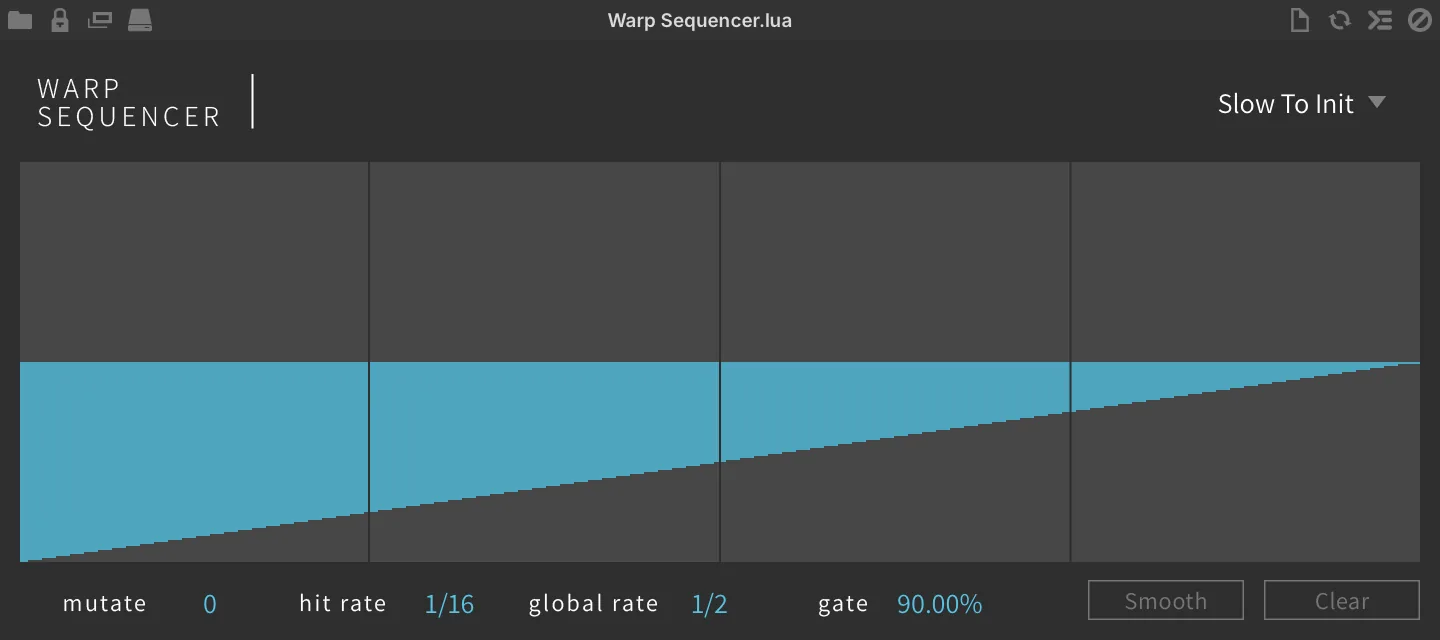
Generate chord-based sequences with hand-drawn speed curve.
PRESETS ▼ select a sequence preset from the menu.
SEQUENCE EDITOR draw a sequence by click-and-drag.
MUTATE sets the mutation rate of the sequence.
HIT RATE sets the sequence hit rate.
GLOBAL RATE sets the global speed of the sequence.
GATE sets the gate amount.
SMOOTH click to apply a slight smoothing to the sequence shape after hand-drawing.
CLEAR clear the sequence form.
Waterfall

Arpeggios with a twist.
MODE sets the arpeggio mode up or down.
TIME sets the interval of the arpeggio in ms or musical interval with SYNC on.
OCTAVE sets the octave range up to 5. LOOP enables loop arpeggiation. REPEAT sets the number of note repeats up to 5.
Wave Sequencer
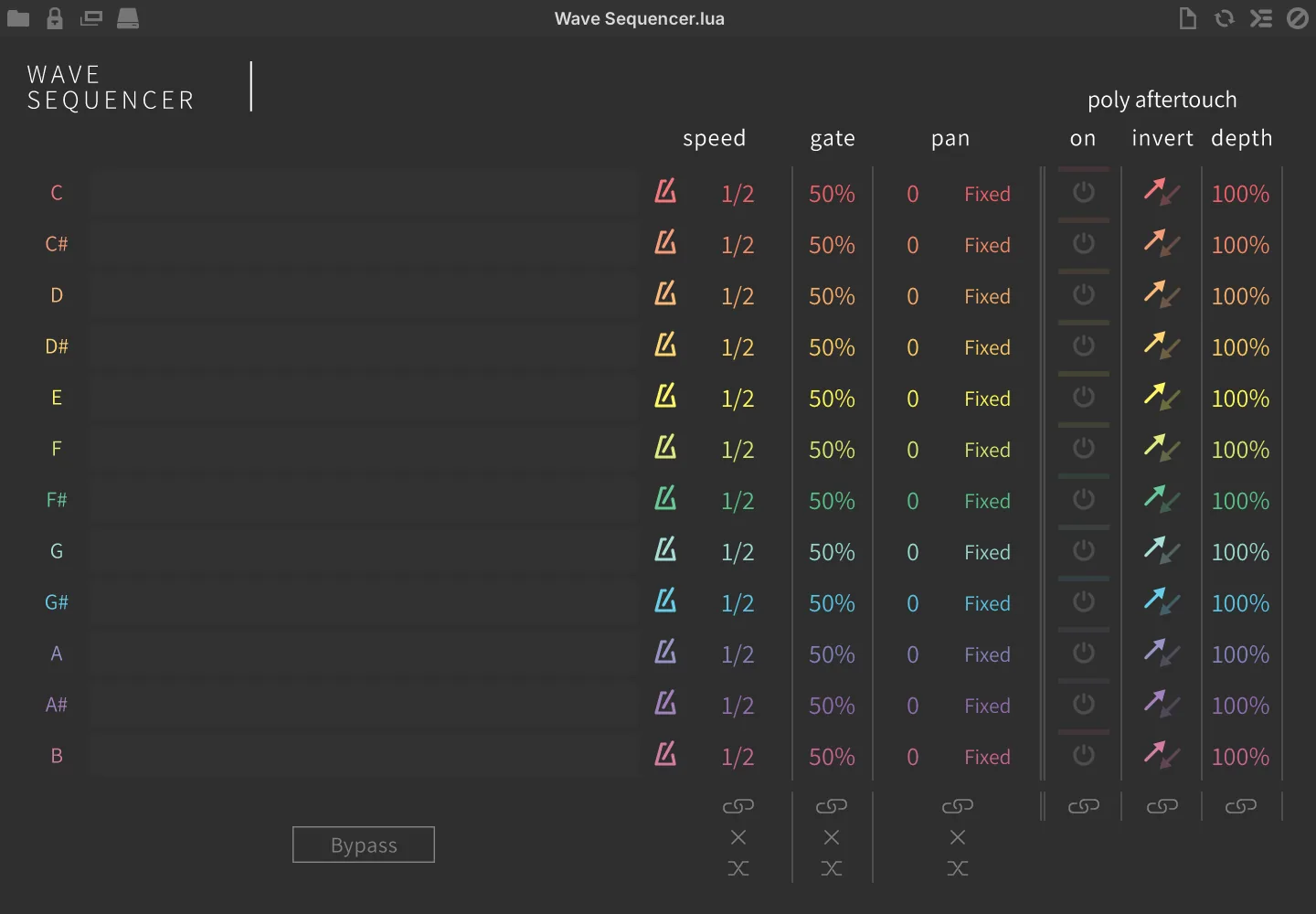
12 note-based clocked event generators with poly aftertouch output.
SPEED sets the step speed in Hz or note duration (sync on) per note.
GATE sets the gate amount per note.
PAN sets the MIDI panning mode per note.
-
FIXED outputs the fixed stereo position set by the note’s dial.
-
ALT alternates the pan left and right with each keypress; the dial sets the depth of the alternation.
-
RAND outputs a random pan position with each keypress; the dial sets the depth of the randomization.
-
NONE has no panning effect
LINK lets you adjust values for each note simultaneously.
INIT (X) initializes the parameter values for all notes at once.
RANDOMIZE randomizes the parameter values for all notes at once.
BYPASS disables the sequence.
Poly Aftertouch
ON enables poly aftertouch per note.
INVERT switches the aftertouch modulation direction, normal or inverted per note.
DEPTH sets the aftertouch modulation depth per note.
LINK lets you adjust values for each note simultaneously.
Utilities
Invert Pitch

Invert the pitch of the incoming MIDI note.
All incoming notes will be transposed by inversion relative to the CENTER PITCH MIDI note number.
For example, setting the Center Pitch to C3 and playing C2 will result in C4.
Limit Range

A range limiter of incoming MIDI notes.
MODE to deal with the notes out of the limiting range:
-
OFF: mute the notes out of the range setting.
-
NEAREST OCTAVE: the notes out of the range will be shifted to the nearest octave in the range.
-
REPEAT RANGE: the limiting range will be duplicated across the whole key range.
-
LIMIT: all notes out of the range will be transposed to the lowest note and highest note of the range.
-
SINGLE: limit to a single note.
MIN sets the lowest note of the range. MAX sets the highest note of the range.
Mapper
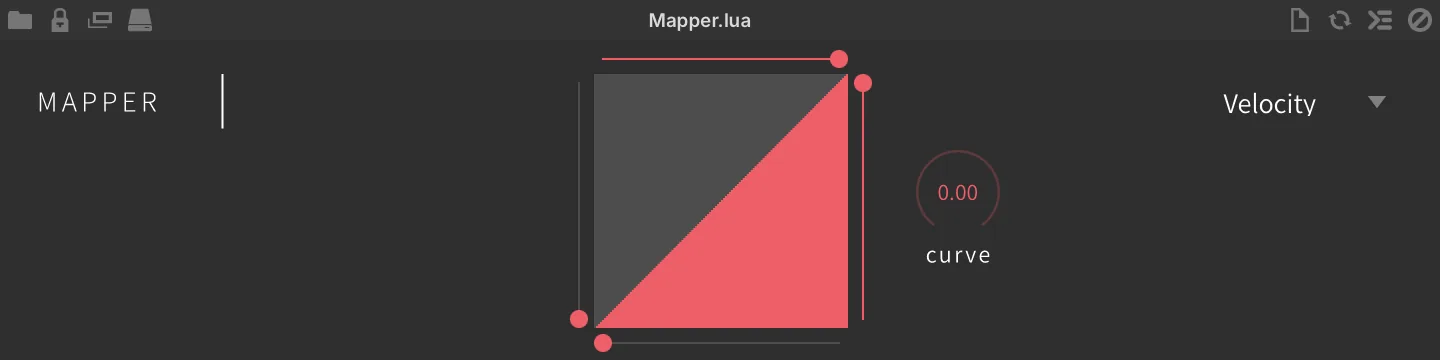
A MIDI signal range re-mapper.
TARGET sets the incoming MIDI message to re-map Click-drag the DISPLAY to draw the desired curve shape. MINIMUM SLIDER (left side of the display) sets the minimum output value.
MAXIMUM SLIDER (right side) sets the maximum output value. MINIMUM X SLIDER (bottom) sets the lowest input value that is re-mapped, and MAXIMUM X SLIDER (top) the highest. CURVE knob sets the re-mapping curve.
MIDI CC Filter

Filter the incoming MIDI CC.
MIDI CC sets the incoming MIDI CC message number to filter.
MIDI CC Redirect

A MIDI CC message re-mapper.
SOURCE sets the incoming MIDI CC message number. TARGET sets the output MIDI CC message number.
MIDI CC Smoother

Slew, or smooth out MIDI CC values over time.
MIDI CC (1–127) sets the incoming MIDI CC message number. SMOOTH TIME (0–3 s) sets the smooth time of the message.
MIDI Delay

Delay the incoming MIDI data.
MIDI DELAY sets the delay time of the incoming MIDI messages in ms (0–200).
MIDI Monitor
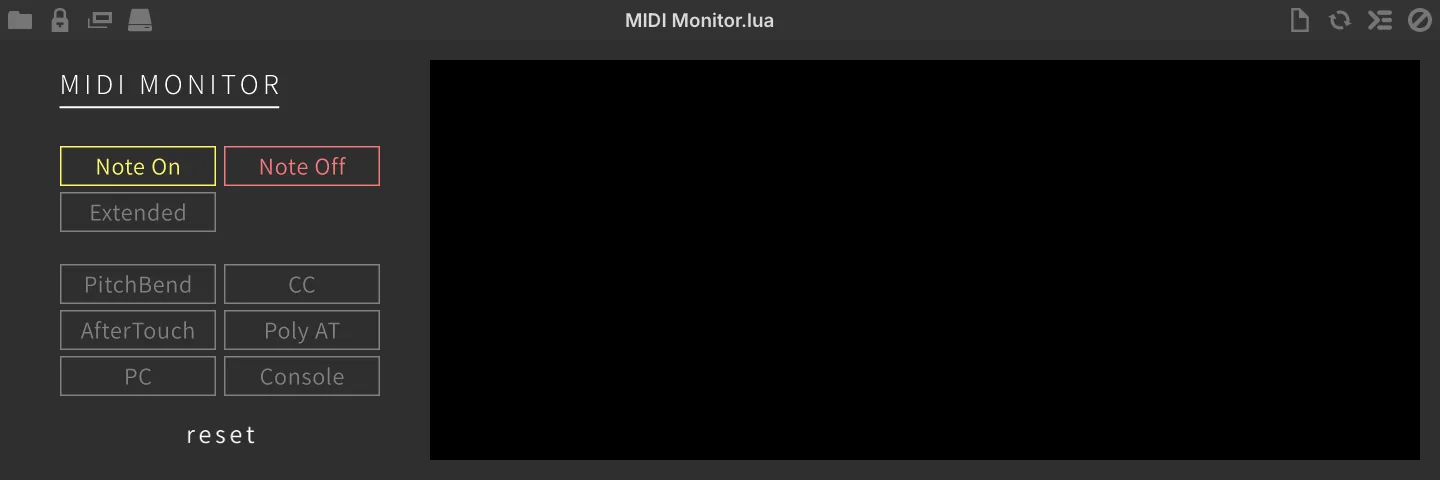
Click the message buttons on the left to control which event types are shown in the output display: Note On, Note Off, PitchBend, CC, AfterTouch, Poly AT and PC. Two further buttons are not filters — Extended appends Volume, Pan, Tune and Id details to the Note On and Note Off lines, and Console mirrors the log to Falcon’s script console. The display holds the ten most recent events, color-coded by type, and reset clears it.
MIDI input monitor with event type filters, useful for debugging.
Click the RESET button to reset the display.
MIDI Record

Record events to a MIDI file with drag-and-drop support.
Hit the RECORD button to start recording MIDI events.
The BUFFER indicator will show the length (beats) and number of events that have been recorded.
PLAY will play back the recording.
CLEAR (X) will clear the recording.
Use the DRAG & DROP to export the recordings as a MIDI file, try dragging to a DAW MIDI track or your desktop.
MPE
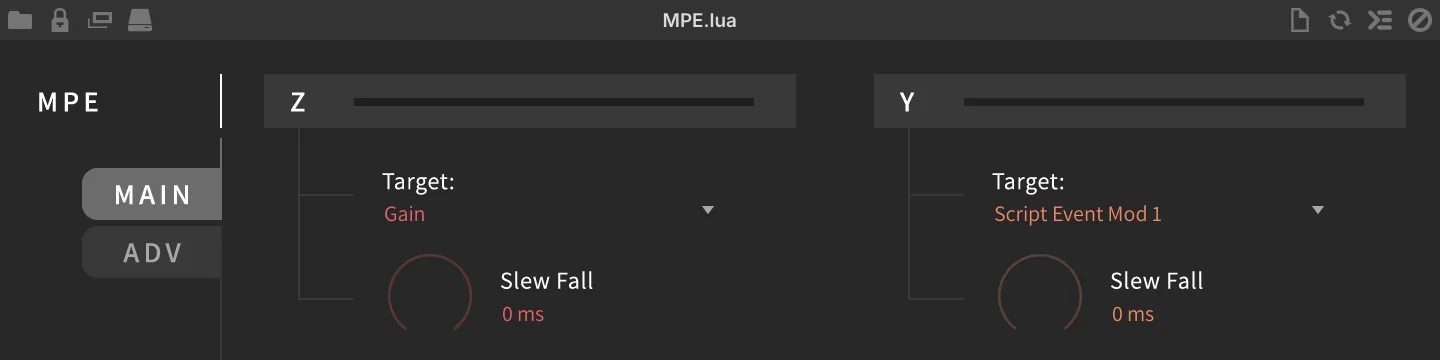
Helper for MPE controllers.
Main
The module has two pages, selected with the MAIN and ADV buttons; Main is shown when the module is added.
The Z (PRESSURE) and Y (TIMBRE) sections each carry a read-only meter showing the incoming value for that axis, together with the controls that route it. Following the usual MPE conventions, Z reads channel pressure (channel aftertouch) and Y reads CC74. Choose the control target (modulation source) from the TARGET: menu, and use SLEW FALL (0–3 s, displayed in ms below one second) to set how quickly Falcon follows the control changes (release smooth time). Slew Fall is disabled when its Target is set to PolyAT.
Adv
X (PITCH) routes the X axis message of the MPE controller, which reads pitch bend. Choose the control target from TARGET: menu. RANGE sets bipolar pitch bend range in semitones (0–48, 48 by default), usually set to 24 or 48.
Advanced Settings
AUTO RELEASE enables auto release Z axis on note-off. GAIN MAP sets the gain mapping curves (20 dB, z², Linear). This is an automatic gain remapping when Z axis is used to control Gain. INIT Z sets the initial value of the Z axis, used until the controller sends one.
GLOBAL CHANNEL sets the global MIDI channel of the MPE controller (1–16).
Pgm Change Switcher

Use MIDI Program change message as a switch to route events to different channels.
INCOMING sets the incoming MIDI channel of the program change message.
DESTINATION sets the output MIDI channel of the program change message.
OFFSET transpose the MIDI program change message.
REMAP MIDI CHANNELS remaps MIDI channels incrementally from A1 onwards.
Transpose

A MIDI transposer.
TRANSPOSE sets the transposition of incoming MIDI notes in semitones.
Velocity Test
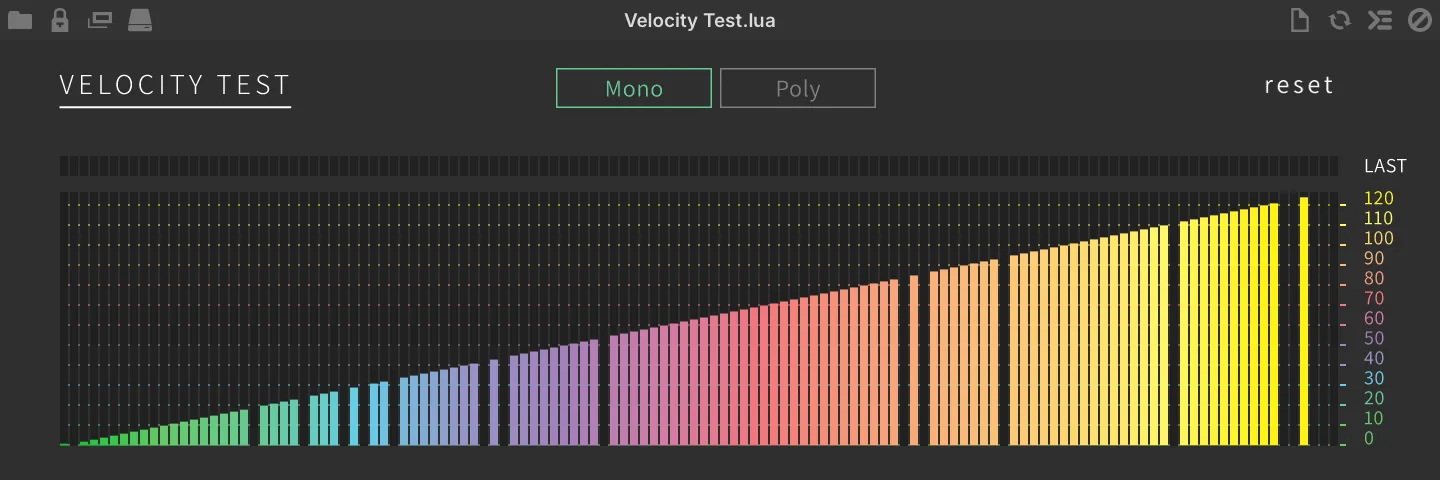
Note velocity monitor with mono and poly modes, useful for debugging.
MONO / POLY switch between MONO or POLY modes. RESET resets the display.