Install Falcon
UVI Portal
1. Open UVI Portal and Log In to Your UVI Account
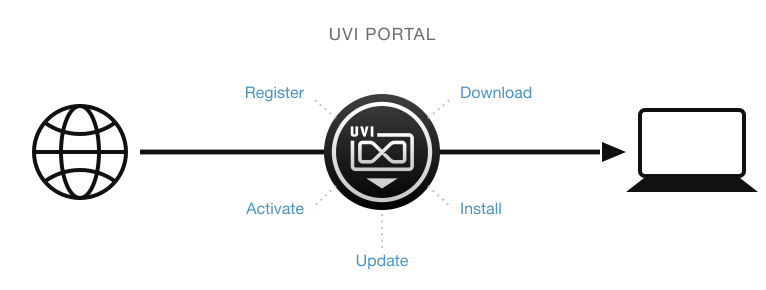
UVI Portal lets you register, download, install, activate and update all of your UVI products in a single convenient location. Click one of the links below to download and install UVI Portal for your system:
If you are a SonicPass member, please refer to this article to download and install your products, including Falcon.
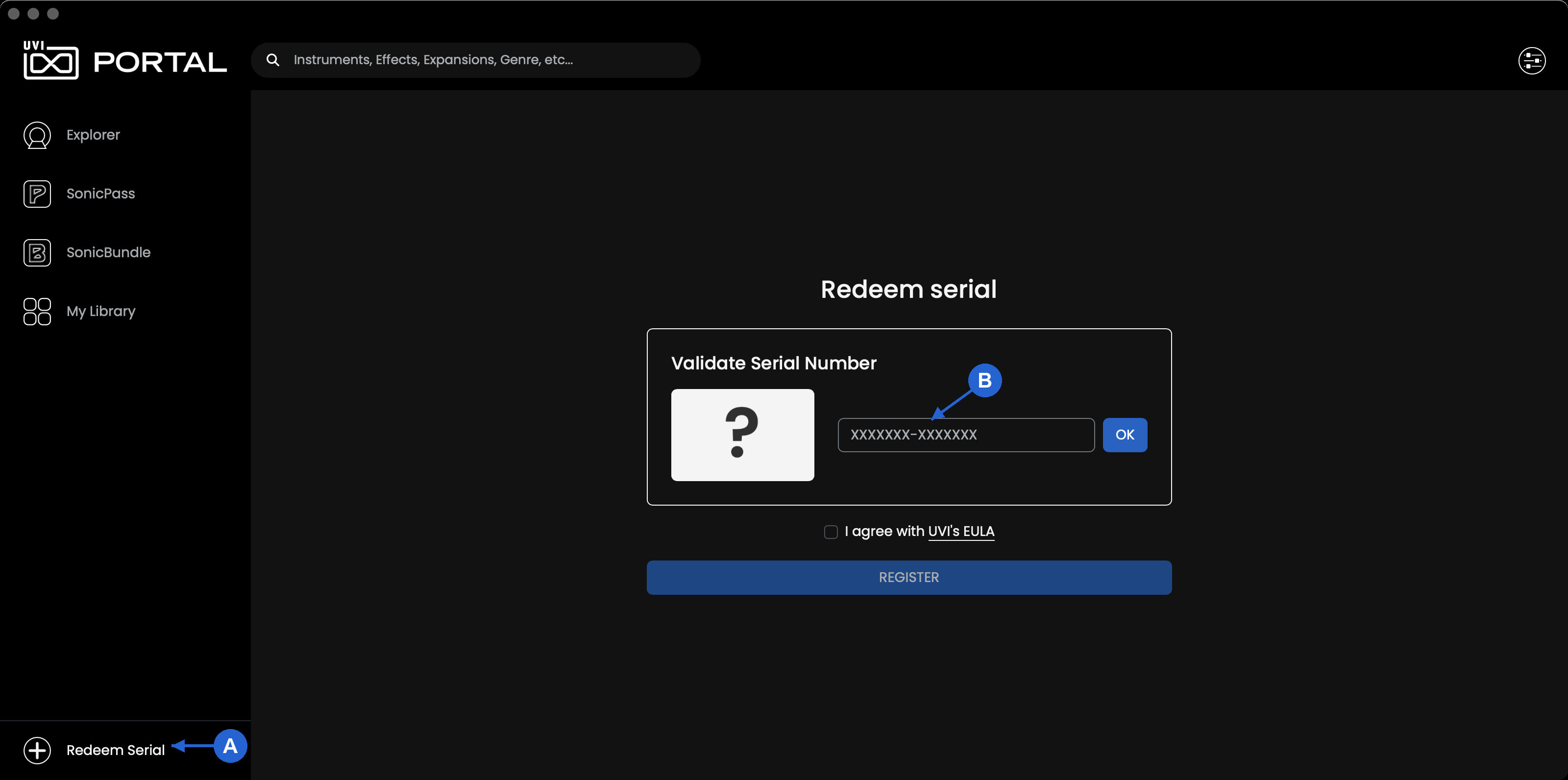
2. Register Your Serial Number and Link it to Your iLok Account
A - Click Redeem Serial at the bottom of the sidebar to start
B - Enter the serial number, then follow the prompt to enter your iLok ID or create an iLok account if you don’t have one
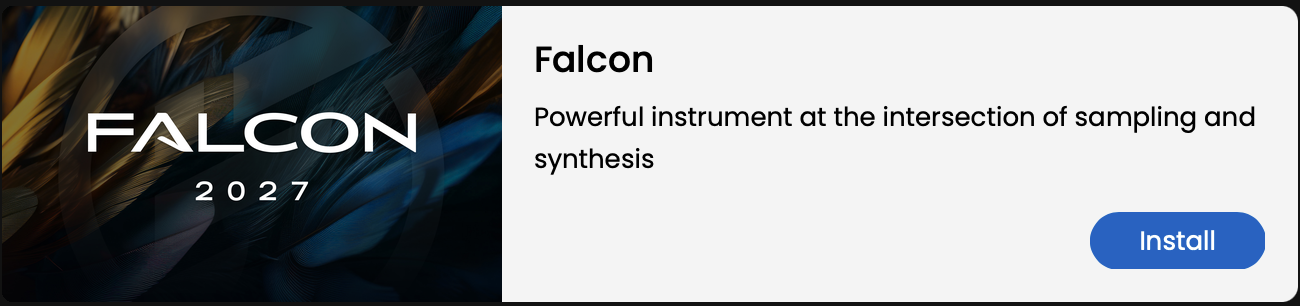
3. Download and Install Falcon by Clicking on the Install Button — Falcon Factory needs to be installed separately.

4. Finish by Activating Falcon with iLok License Manager
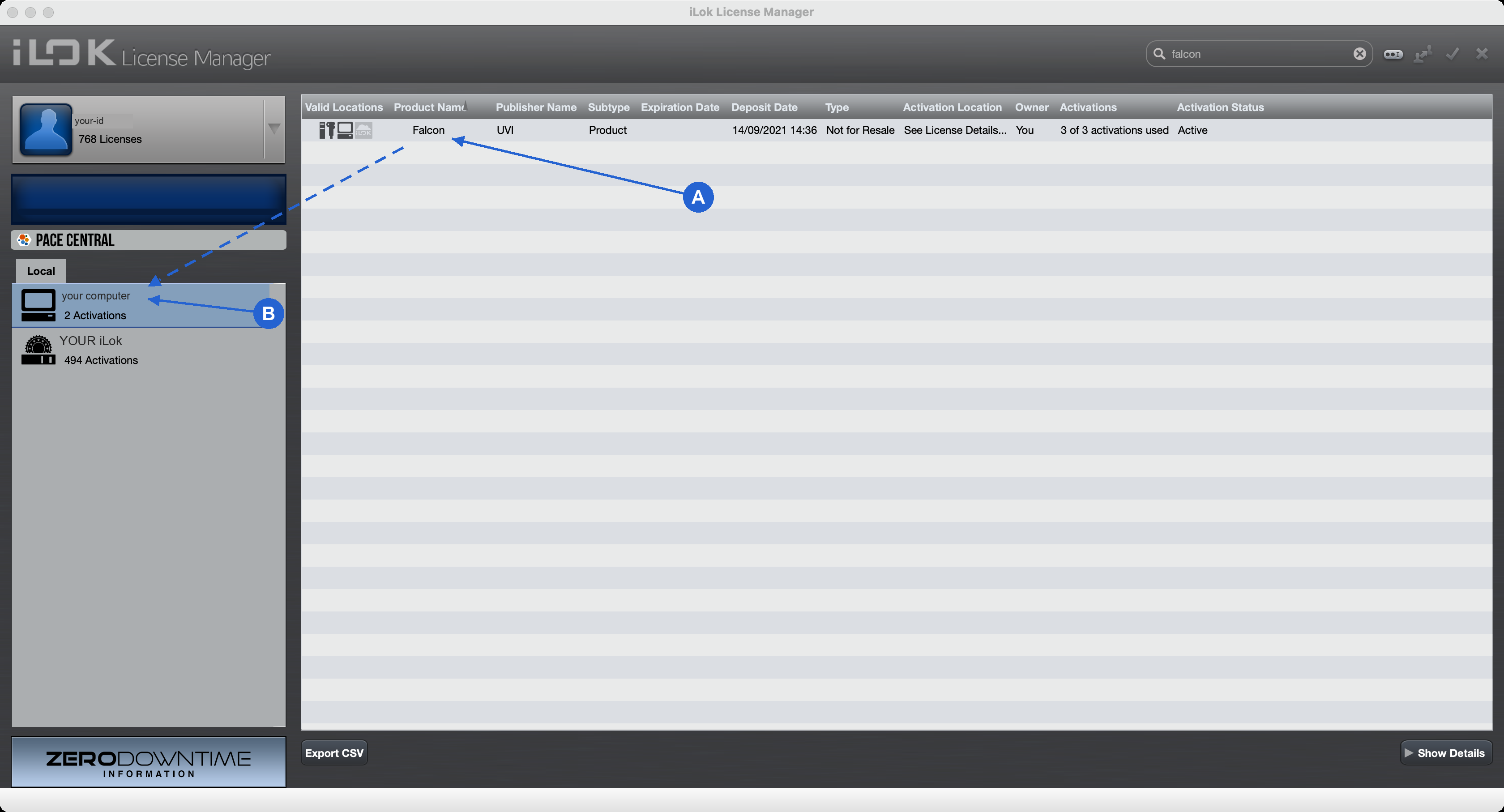
Click the activate button in UVI Portal to open the iLok License Manager app.
A - Find the Falcon license in the list
B - Drag and drop it onto your computer in the Local list on the left
Please refer to the UVI Portal Manual for more details.
Startup Screen
Startup Screen
- Launch Falcon.
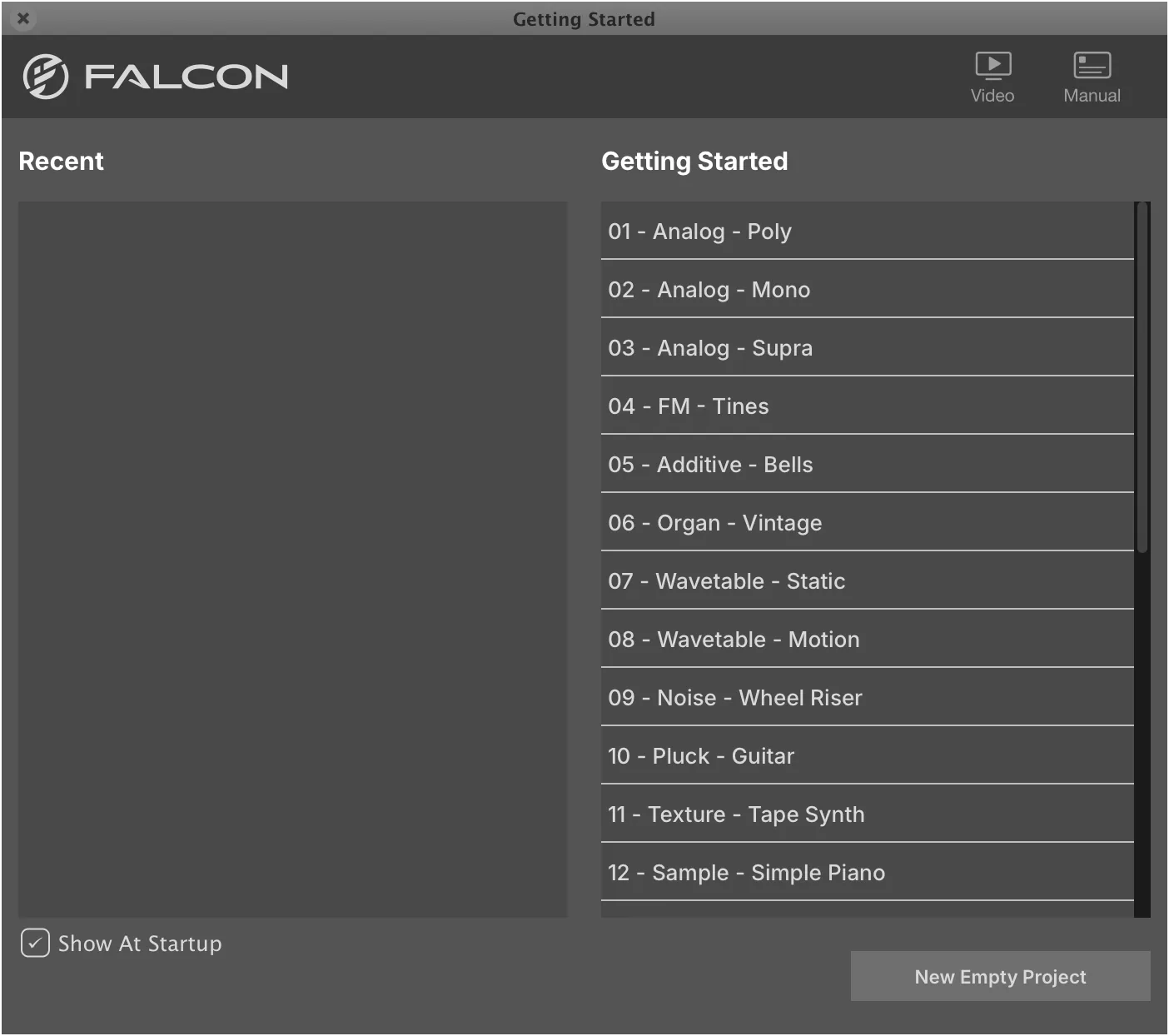
The startup screen provides quick access to the program templates as well as recent patches.
- Select from the options:
The templates cover a range of setups, including many types of synths, samplers, MPE and more. Program templates are a fantastic way to jump-start your creative process. You can even create your own!
-
A. Select a template from GETTING STARTED.
-
B. Select a RECENT program.
-
C. Click NEW EMPTY PROJECT to start from scratch, or select a patch from your Soundware.
Other Options
-
The small X button in the upper-left corner closes the screen.
-
Uncheck SHOW AT STARTUP to launch Falcon without this screen.
-
VIDEO opens Falcon videos on YouTube in your web browser.
-
MANUAL opens this manual in your web browser.
Audio & MIDI Devices (Standalone)
Configure I/O
1. Launch Falcon
If you plan to use Falcon in standalone mode, you may need to select which MIDI inputs and audio outputs you want Falcon to use. This only needs to be done the first time you launch Falcon, or if you make changes to your hardware (such as changing your audio interface or controller keyboard), as these settings will be saved and reloaded the next time you start Falcon.

2. Select ‘Audio and MIDI Settings…’ from the Menu
3. Select the Desired Audio and MIDI Devices…
If you intend to use Falcon primarily as a plug-in you can skip this step, as the audio and MIDI settings will be defined by your host DAW.
Device
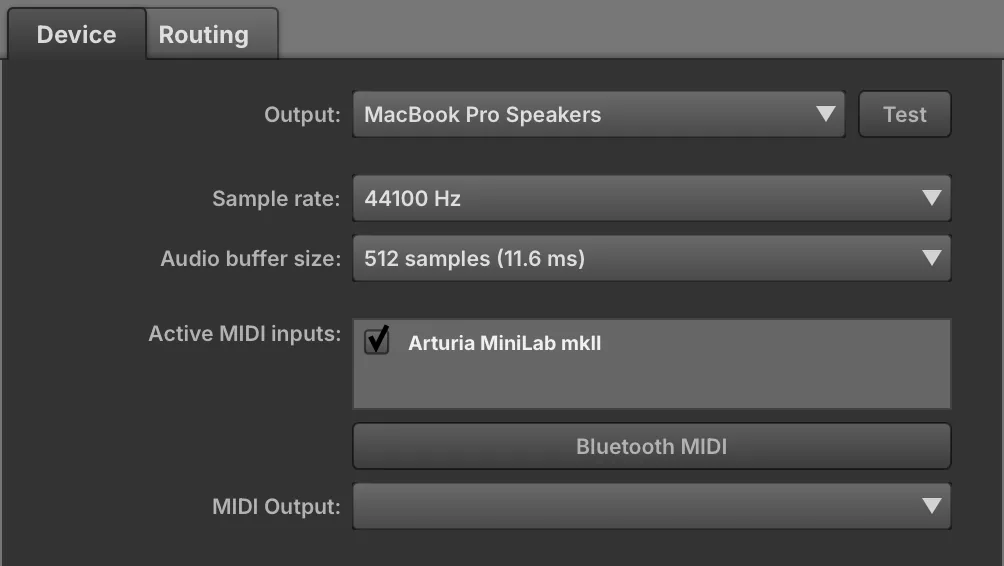
Select the desired audio interface from the Output menu, click to activate the available output channels, then select the sample rate and buffer size from the menus.
Click to activate the available devices or sources for MIDI input.
All incoming MIDI inputs are merged, but channels remain discrete.
On each Falcon part, select OMNI to listen to all channels, or A1–A16 to listen to a specific channel.
Routing
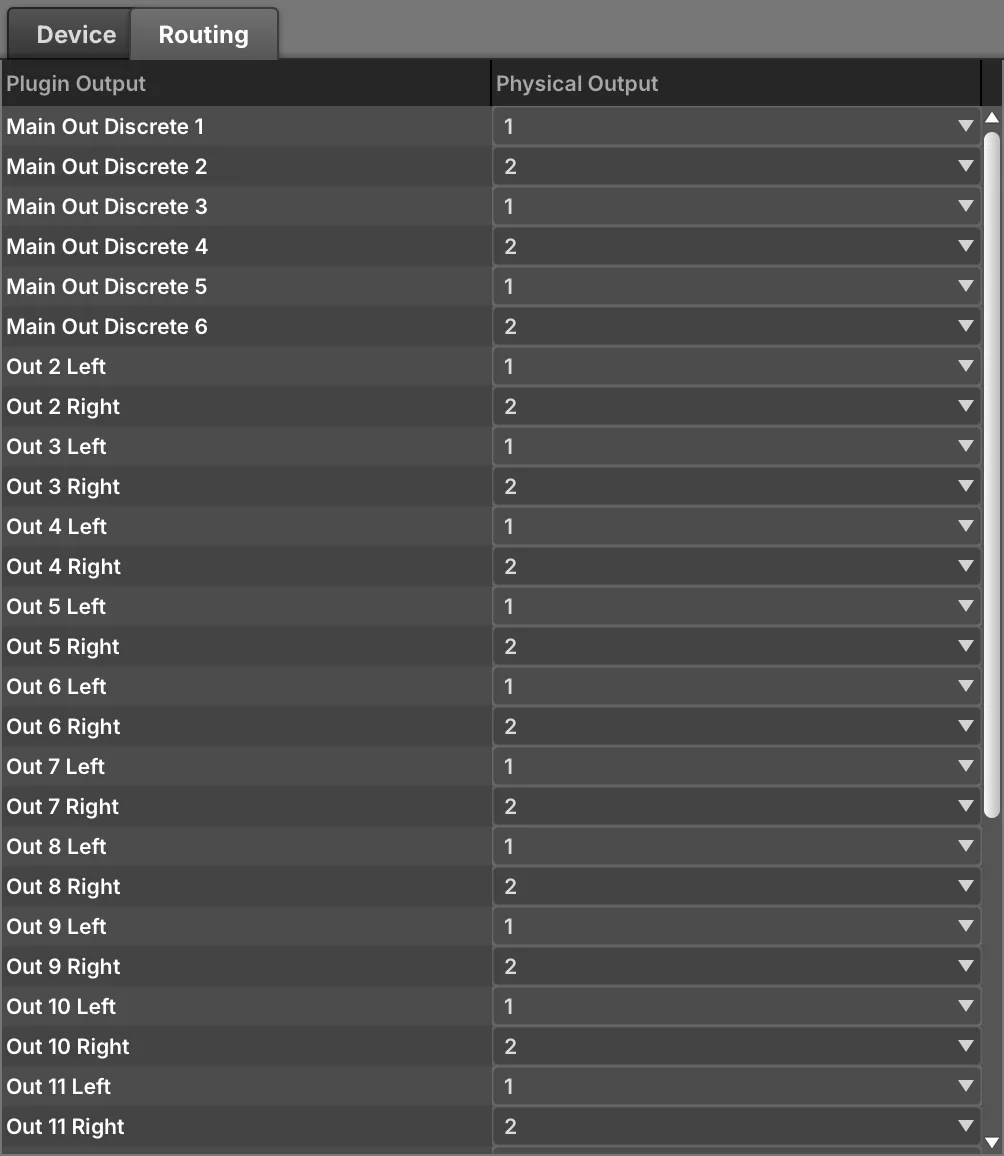
Falcon can address up to 17 stereo outputs. Use this panel to link Falcon’s outputs with those of your audio interface.
Load Your Soundware
Preset Browsing
- Launch Falcon.
UVI-Powered Soundware is high-quality sound and instrument content from UVI and partner developers. Soundware and Falcon Expansions are fully supported and seamlessly integrated in Falcon.
- Double-click EMPTY in the Parts List to open the Library Browser.

To use Falcon Factory (and Soundware) in Falcon you just need to tell it where to find them.
- Click the FILES tab to switch to the File Browser, and expand its SOUNDWARE section.
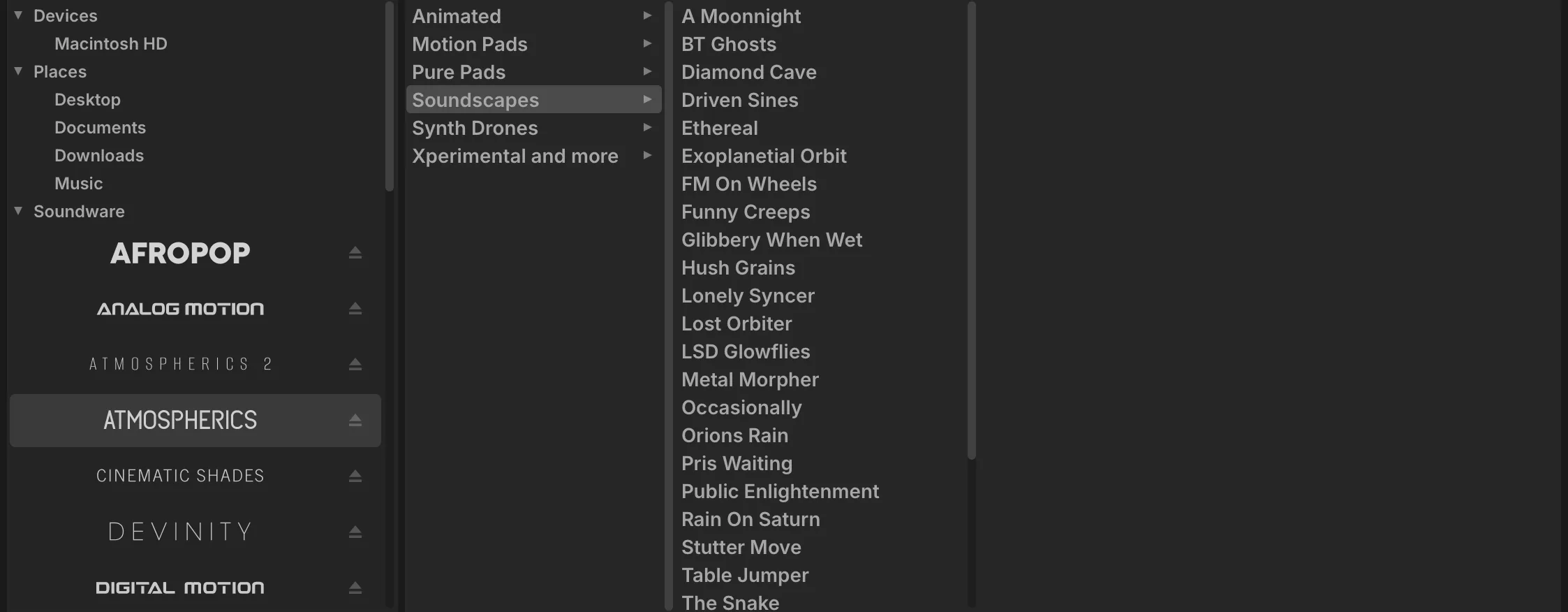
You can change the Soundware location, for example to an external drive.
- Select a Soundware, then a category and a patch. Double-click the patch to load it.
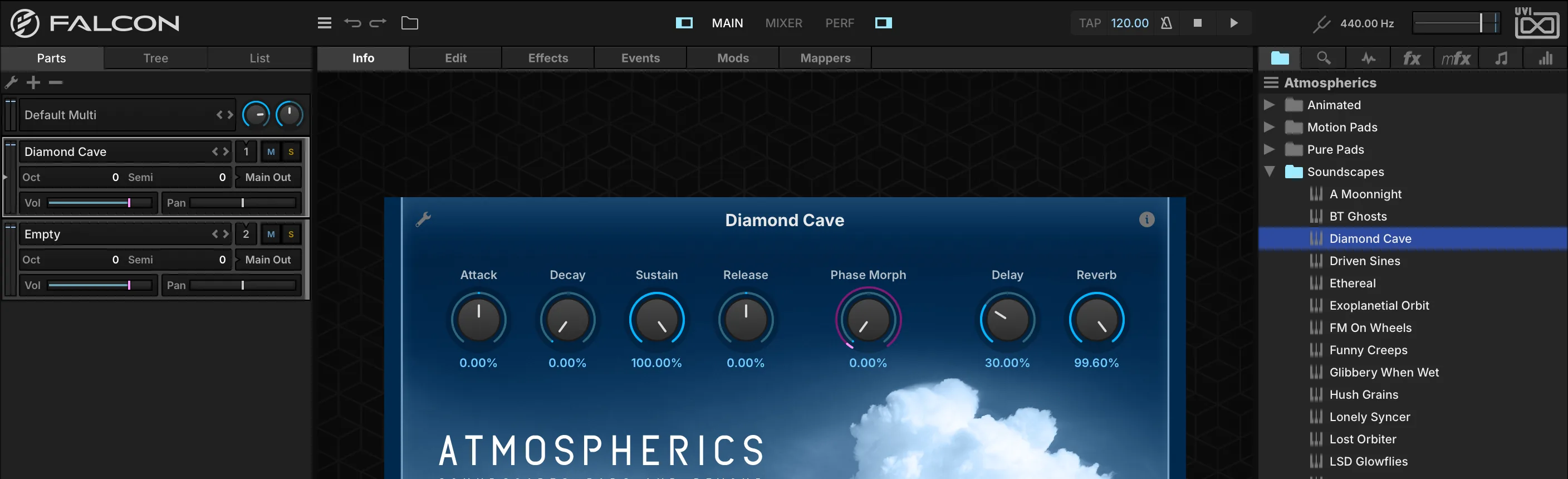
To manage your Soundware location, open the preferences panel of UVI Portal, or the Soundware tab in the preferences panel of UVI Player or Falcon.
NOTE: If you commonly use UVI Player it is recommended that you place your Soundware files and Falcon Expansions in separate directories.
- Close the browser, and you’re ready to jam!